


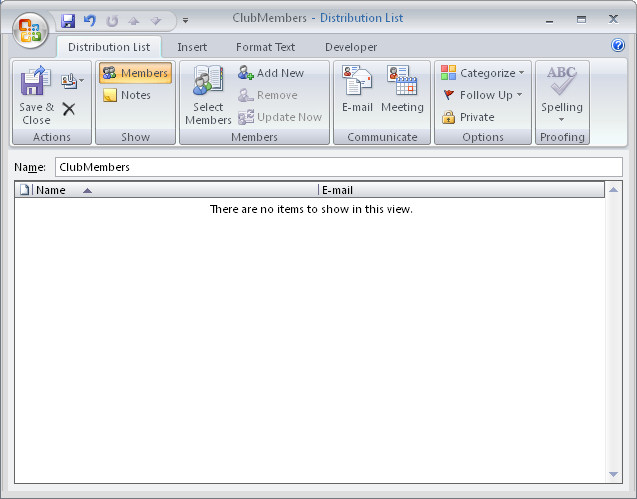
When you regularly email a lot of people at once, it makes sense to assemble a distribution list to simplify the task. Then you can send the email to all the people in the list in one step, rather than having to select each member individually.
To create a distribution list in Outlook, select Tools > Address Book and choose File > New Entry. 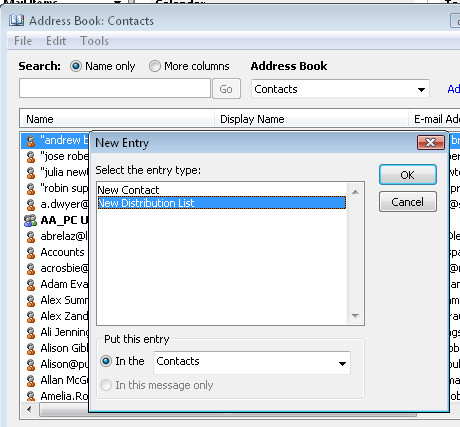 From the “Select the entry type” list select New Distribution List.In the “Put this entry” area, select Contacts and click OK.
Give your list a name and, to add members to it from your existing Contacts, click the Select Members button. Double click the members in the dialog to add them to the Members area at the foot of the dialog. When you’re done, click Ok.
To add the details of someone who isn’t in your existing Contacts, click the Add New button, then type their details into the dialog.
When you’re done, click Save & Close to finish.
In future you can add the list name to the To area in an outgoing email to send the email to the list members, or better still, include it in the BCC line to keep the members secret from each other.
Post a Comment
Please feel free to add your comment here. Thank you!