Monday, April 30th, 2007

PowerPoint – to fit or not – it’s your choice

autofit 779565 PowerPoint   to fit or not   its your choice

PowerPoint has a handy tool (or a very annoying one – depending on your perspective) for adjusting text on a slide.

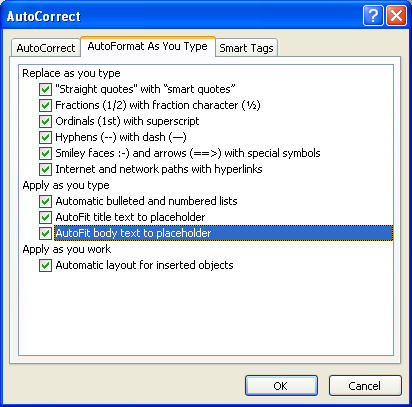
In PowerPoint 2003 and earlier choose Tools > AutoCorrect Options > Autoformat as you Type and you will see that there is an option called Autofit body text to placeholder. Enabled this and all the text that you type on a slide is automatically sized to fit the slide – you can type gobs of text and it just keeps getting made smaller and smaller as PowerPoint shoehorns it in so it fits.

If you disable this option, you get to control the slide’s text size yourself – a rough rule of thumb is that if it goes over the edge – it’s too much text for one slide so make another one or edit your text.

Autofit is a tool you can disable or enable as you like – once you know it’s there – it’s your choice what you do with it.

Thursday, April 26th, 2007

PowerPoint Master shortcut

master 726484 PowerPoint Master shortcut

If you’re like me and you use the PowerPoint master view a lot—and you really should because it allows you to control the formatting of all the slides in your presentation from one place—you will know that there’s no quick way to open into master view.

That is unless you read this tip.

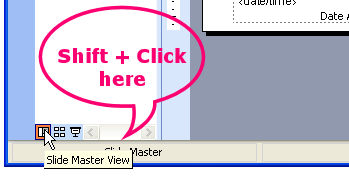
To quickly access the slide master view hold Shift and click the Slide View button in the bottom left corner of the PowerPoint screen. This automatically opens master view allowing you to work on the slide master then close it and return to your PowerPoint presentation. Simple, when you know how?

Thursday, March 29th, 2007

Getting alignment right (or left), in PowerPoint

align 788147 Getting alignment right (or left), in PowerPoint

Let’s face it, it’s easy to dump pictures, text and charts on a PowerPoint slide but it can end up looking like the dog’s breakfast – at least what I imagine a dog might eat for breakfast.

When you want your slide to look good, you need to have everything aligned neatly on it. To do this, click on the first object to align and Control + click on the second. From the Drawing toolbar choose Draw, Align or Distribute and then an option such as Align left to align both objects so they’re lined up along the left edge of the object that is further to the left on the screen.

In a few simple clicks you can restore order to an unruly slide.

Wednesday, March 14th, 2007

PowerPoint Guides

ppguides 752428 PowerPoint Guides

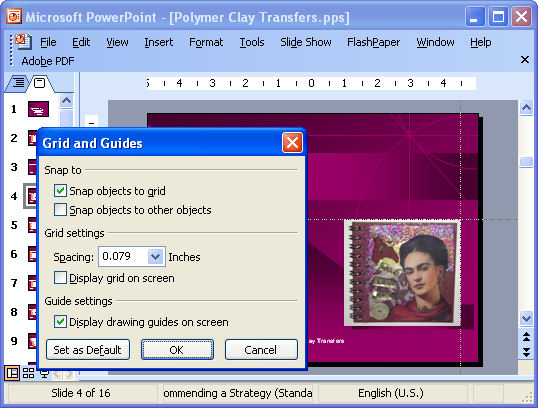
If you’re a perfectionist like I am (on a good day, anyway), you will want everthing lined up neatly on your PowerPoint slides. To do this, use Drawing Guides. To do this, choose View, Grid and Guides and enable the Display Drawing Guides on Screen checkbox.

You’ll see two cross hatch grid lines. To move them simply hold your mouse over them and move one. To create a new guide, hold the Control key as you drag on an existing guide. To remove a guide drag it off the slide.

You can now neatly line everything up that needs to be lined up.

Tuesday, March 13th, 2007

Smaller spaces on PowerPoint Slides

Sometimes there is just too much space between the edge of the slide and the bullet character that PowerPoint uses.

However, luckily, there is a way to fix the problem and to make the space smaller. Start by displaying the ruler by choosign View, Ruler. Then select the text to alter and, on the ruler you’ll see the marker that controls the positioning of the bullet. Drag it with your mouse, if you need to do this in small amounts, hold Control as you do it.

Which is a bit strange really, because in Word, for example, holding Alt is how you get to fine tune spacing.. hmm! well, if nothing else, these crazy mixed up keystrokes keep some of us in business.

Friday, March 9th, 2007

PowerPoint preview and edit

I’m one of those people who love to do multiple things at one time. I can listen to a movie, work and have the washer and dryer chugging away in the background while I’m planning a weekend art project.

That’s why I love today’s tip. It lets you preview a PowerPoint presentation at the same time as you edit it.

Simply, choose Slide Show and while clicking View Show, hold the Control key. You’ll see your slide show on the screen in the top left corner and PowerPoint visible in the remaining area. You can work on the show and preview it (and your changes) the same time.. neat idea?

Sunday, March 4th, 2007

Use the PowerPoint menu to go back

By default, when you are viewing a PowerPoint presentation pressing the right mouse button shows the PowerPoint presentation menu.

If you’d prefer that, instead, it moved back one slide, then you can configure it to do this. Choose Tools, Options and click the View tab. Clear the Show menu on right mouse click checkbox and click Ok.

Now, the left mouse takes you forward and the right takes you back. If you need to see the menu at any time, pressing Shift + F10 will display it.

Wednesday, February 21st, 2007

Getting into PowerPoint Actions

When you create PowerPoint presentations that will be used or viewed by one person at a time, rather than by a group, you can customise movement using Action buttons.

Using an action button you can take a user to another place in the presentation or offer Yes and No as a choice to progress to the next slide and take the user to different places depending on their answer.

To add an action button, click on the slide to contain the action and chose Slide Show, Action Buttons and choose Action Button: Information and drag to place the button on the slide. When the Action Settings dialog appears, choose Hyperlink to and select the slide to link to. When a user clicks the button they will be taken to that slide.

If you want them to be able to return to where they came from you can add an Action: Return button to the slide you’re sending them to and they can click it to return to where they came from. This is handy for providing a slide with more information on the topic, for example.

You can use Actions without the buttons that PowerPoint provides. So, for example, you can use custom icons or AutoShapes and place them on the slide. Then right click the image and choose Action Settings from the menu. From here you can configure the same action options for the shape as you do for a PowerPoint Action button.

Action buttons can also be used to display an Excel worksheet or chart, a Word document, or even a web page, for example. When you’re creating an action button that should appear on all the slides in a presentation, you should create it on the Slide master by choosing View, Masters, Slide Master. Then the action button will be accessible to all slides in the presentation. If you need to block it from one slide, place an object over the top of it – action buttons under other objects are disabled and cannot be clicked.

Page 2 of 212