


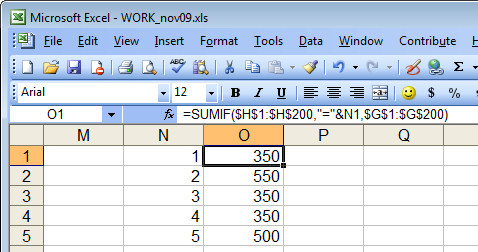
 I love SUMIF. It’s a handy tool for summarizing data. So, today I was checking how much I had invoiced a client – I have actual charges for stories I write in one column and the invoice numbers that these were charged under in another. I wanted a summary so I know the total of invoice 1 was $x and invoice 2 was $y.
SumIF is the tool to use. It goes like this:
=sumif(G1:G200,”=1″,H1:H200)
this sums the values in the range H1:H200 only if the corresponding values in the range G1:G200 is 1. So, it does the deed for Invoice #1. Repeat as required for invoices 2-20 – no way!
It is much easier if I place the numbers 1, 2, 3 and so on in cells of the worksheet and reference them in a single formula that can be copied rather than writing this 20 times… or 100 times… you get the picture… it’s simply not on to do this.
Problem is – how to refer to a cell in the SumIF function. This DOES NOT WORK! =sumif(G1:G200,”=N1″,H1:H200). Excel doesn’t see the N1 as a cell reference – it sees it as a value to match.
So, you have to write it differently:
=sumif($G$1:$G$200,”=”&N1,$H$1:$H$200
the “=”&N1 references the value in N1 as the one to match and the $ symbols are needed so the formula can be copied.
I believe you’re overthinking this one. A plain cell reference with no equal sign and no quotes should do the trick.
=sumif($G$1:$G$200,N1,$H$1:$H$200)
should be valid.
SUMPRODUCT works well for this kind of task, too. Try =sumproduct(–($g$1:$G:$200=N1),$H$1:$H$200). The result of the first argument will be “TRUE” or “FALSE.” Using “–” converts the result into a 1 or 0. The result is multiplied by the contents of column H.
See: for more cool SUMPRODUCT tricks.
Thanks mseyf.. you are right, removing all the extras before N1 works just as well. Thank you for your input. Helen
Thank you, this is very helpfull. some cell reference does not work by writing sraight N1 .So, this formula is perfect.
A valuable report – which certainly helped me.
Unfortunately there a quite a few flaws and bugs in ‘Excel’ and the fact that the so-called ‘Help’ screen are often so badly phrased doesn’t help either.
Always check your ‘Excel’ results with a calculator.
Good point. Mike. You should always check your work – Excel is only as good as the person who designs the worksheet and we can all make mistakes! Helen
I like the way of your description. Very understandable, even for me as a excel beginner. I also came across to this site http://www.excel-aid.com/excel-cell-references-working-with-cell-references-to-other-files-2.html which deals with cell refereces