Thursday, March 17th, 2011

Excel Convert dates from MDY to DMY

excel date conversion mdy to dmy Excel Convert dates from MDY to DMY

Today I encountered a problem when downloading some data from an Australian bank. Australia uses the DMY date format whereas the US uses MDY, my computer is set to use US as its region which means Excel expects dates to be entered using MDY format. Excel gets its country information which affects dates, in particular, from the setting you have for your Windows Region.

So, I had a .csv file in which all the dates were entered wrongly – they read 22/11/2010 instead of 11/22/2010, for example. When the dates are typed incorrectly for the country you are currently set to use, you can’t simply apply a format to them to fix the problem because there is no such date as 22/11/2010. And worse still a date like 2/1/2011 which is 2-Jan-2011 in Australia will be formatted as 1-Feb-2011 in my US Excel – throwing all my data spectacularly out.

So what to do?

The simplest solution is to use the Excel data parse tool. Select the column of dates and choose Data > Text To Columns. This opens the Convert Text To Columns Wizard which is the old way of parsing data into Excel.

In Step 1 select either option as you only have one column of data selected anyway. Click Next twice. Now in step three of the wizard, select the Date option and select the formatting for the displayed data. So if the data has been typed in DMY format, select DMY. If it has been typed in MDY format, choose MDY. Click Finish.

excel date conversion mdy to dmy convert to text Excel Convert dates from MDY to DMY

The date data will be automatically converted to match the correct date syntax for your version of Excel. In short this converts all my Australian dates to US date format so they are correct in Excel. Select the column of dates and you can now format the dates using your preferred format.

It’s a simple but effective solution that avoids the necessity of retyping the date data.

Tuesday, February 22nd, 2011

Excel – copy a chart or worksheet as a picture

Excel 2010 copy worksheet or chart as an image or picture Excel   copy a chart or worksheet as a picture

Sometimes you need to place a copy of a worksheet or a picture of an Excel chart onto your website or into a document. When you need only the image itself (not the link or an embedded version of the worksheet) you can make a copy of the area or graph as a picture.

So, with the worksheet open, select over the area that you want to convert to a picture. Or, if you need a picture of a chart select the chart. Now, from the Home tab, click the Copy dropdown list and choose Copy As Picture.

From the dialog which appears, choose Bitmap if you want an image the same size as you see it on the screen. To get an image you can make larger than this, choose Picture as this creates an image which scales well.

Then select either ‘As shown on screen’ or ‘As shown when printed’ as required. Click Ok and the picture will be copied to the Windows Clipboard. You can now paste the image into another application using that application’s Paste tool.

Thursday, February 17th, 2011

Excel – Hide a sheet in a workbook

Excel hide a worksheet from view Excel   Hide a sheet in a workbook

If you have data on a worksheet that you don’t want others to see, you can hide the sheet but in such a way that the data on that sheet can still be used in formulas, for example.

To do this, right click the sheet tab for the sheet to hide and select Hide.

Now that the sheet is hidden, you can unhide it if necessary at a later date by right clicking any sheet’s tab and choose Unhide and then select the sheet to unhide.

If you hide the last sheet in the workbook, it will be less obvious to a user that there is a hidden sheet that they’re not being given access to.

Wednesday, November 10th, 2010

Microsoft Office columns at SmallBusinessComputing.com

Microsoft Office How to articles smallbusinesscomputing Microsoft Office columns at SmallBusinessComputing.com

I work for some totally cool people and organizations. One of them is SmallBusinessComputing.com. I write a lot of pragmatic Office columns for the site – I love getting down to the tools you most need to use every day and where you can make get the most time saved.

Well my editor loves my stuff so she has created a How To with Helen Bradley page which includes links to all my columns. You can either head over there and browse to find what you want, or read on – I’ve grabbed all the things there and the links to make it super simple for you to read any of the articles on the site. The first link to Time Saving tips for better letters in Word got picked up by one of the NYTimes business blogs:

5 Time-Saving Tips for Better Letters in Microsoft Word

[October 26, 2010] Does your small business software work as hard as you do? Helen Bradley offers five Microsoft Word tips to save you time and help you write great business letters.

Small Business Software: Microsoft Word 2010

[October 21, 2010] Microsoft Office 2010 is packed with changes and cool new features that can help any small business. Let our tour guide show you what’s different so you can make the most of this small business software staple.

How to Make a Small Business Website Banner

[September 20, 2010] Simple touches can make your small business Web design stand out. Helen Bradley explains how to create a great-looking collage banner for your small business website.

Small Business Solution: Manage Your Money in Excel

[August 23, 2010] Helen Bradley explains how any SMB can project and track cash flow with a budget in Excel.

5 Image-Editing Tips to Improve Any Photo

[July 20, 2010] Helen Bradley shows you five ways to make your small business website photos look better using Photoshop or Photoshop Elements.

MS Office Live Brings Small Business Computing Online

[June 21, 2010] Helen Bradley explains how you can leverage your small business software using Microsoft Office Live Workspaces and SkyDrive.

Microsoft Small Business Software: OneNote

[May 20, 2010] Helen Bradley introduces Microsoft’s note-taking and research tool (not to mention unsung hero), OneNote 2003.

Small Business Software: Survey Forms in Word 2007

[April 28, 2010] Surveys are a great way to find out what your customers are thinking. This Word 2007 tutorial will teach you how to create your own survey forms, plus it offers a few tips on writing better surveys.

Customer Databases as Marketing Tools

[April 21, 2010] A strong customer database is a valuable asset and a great small business marketing tool. Are you making the most of yours?

Small Business Software: 7 Tips for Excel Charts

[April 8, 2010] Use small business technology to your advantage. These seven handy Excel charting features make the data in your charts easier to read and comprehend.

Small Business Marketing: How to Create a Web Site

[March 22, 2010] A Web site is one of the most essential Internet marketing tools for a small business. Helen Bradley explains the basics of creating a Web site without spending a fortune.

Multimedia How-To: Producer for PowerPoint 2007

[March 8, 2010] Need a creative boost to your small business marketing materials? Helen Bradley shows how to add multimedia to your presentations with Producer for PowerPoint 2007.

E-mail Marketing: Create a Newsletter in Publisher

[February 19, 2010] Give your small business marketing a boost by making your own custom e-mail newsletter. Helen Bradley shows how easy it is to do in Microsoft Publisher 2003.

How To Make Image Maps in PowerPoint 2003

[January 4, 2010] Helen Bradley explains how to create clickable hotspots, or image maps, that simplify navigating a PowerPoint presentation.

Find Info Fast: How to Create an Index in MS Word

[December 17, 2009] Helen Bradley walks you through Word 2007’s built-in indexing tool and shows how to make document indexes — by hand or automatically.

PowerPoint 2003: How to Animate a Slide Background

[December 10, 2009] Helen Bradley explains how to create a moving picture background that, when used sparingly, makes a more compelling PowerPoint slideshow.

Web Site Design: Simplify with CSS

[November 23, 2009] Whether you’re redesigning your Web site or starting from scratch, consider using CSS — it’ll make future style changes much easier down the road.

Microsoft Tips: How to Make Signs in Word

[November 4, 2009] Ready for do it yourself signage? Our Microsoft tips guru explains the basics of creating professional, functional signs in Word.

Good Web Design Turns Visitors Into Customers

[November 3, 2009] A consistent Web design not only makes visitors more comfortable on your site, it increases your chances of converting them into customers.

How-To: Make a Feedback Quiz in PowerPoint

[October 9, 2009] Helen Bradley shows how you can gather information from someone while they view a Microsoft PowerPoint 2007 presentation.

How to Create Lists in Microsoft Word

[October 8, 2009] Helen Bradley walks you through the steps to create and customize bulleted and numbered lists in Word 2003.

How to Make Charts in Microsoft Access

[September 28, 2009] Helen Bradley explains how you can chart your data without ever leaving Microsoft Access.

Create Custom Functions in Excel 2007

[September 2, 2009] Helen Bradley shows how custom Excel functions save time and effort and how you can use your custom functions in all your workbooks.

How To Design Brochures in Microsoft Publisher

[August 26, 2009] Helen Bradley shares design tips to create great-looking brochures in Microsoft Publisher.

Microsoft Excel: Design Error-Free Worksheets

[July 29, 2009] Helen Bradley looks at simple ways to avoid introducing errors in Excel worksheets.

How To: No-Hands PowerPoint 2007 Presentations

[July 1, 2009] Helen Bradley walks you through building a PowerPoint slide show that can run automatically – a handy promotional tool to use at events or in reception areas.

Working with Word 2003: Add a Professional Look

[May 28, 2009] Helen Bradley shows you how to add finishing touches that make Word documents look polished and professional.

Word 2007: Working with Numbered Elements

[May 15, 2009] Helen Bradley shows how to create duplicate and sequential numbering in Microsoft Word 2007.

How to Create Custom Formatting in Excel

[February 17, 2009] Helen Bradley demonstrates Excel formatting tricks that will help you when things don’t work as planned.

Microsoft Excel 2007: Outlining Worksheets

[February 10, 2009] We show you how to summarize important data in your Excel 2007 worksheets and reduce the data to more manageable levels with the ultra-efficient outline tool.

How To Make Templates in Microsoft Word 2003

[January 27, 2009] Helen Bradley shows you how to create Word document templates to quick start your day-to-day tasks.

How to Use Teamwork Tools in Microsoft Word 2007

[January 7, 2009] When working on documents with other people, tracking changes has the potential to save time and help keep others well informed and on the same page.

Excel 101: Create Worksheets and Charts

[December 19, 2008] Helen Bradley introduces the basics of creating a worksheet and chart in Microsoft Excel.

Link or Embed: How To Add an Excel Chart to a Word Doc

[December 1, 2008] Microsoft maven Helen Bradley explains how to place an object from one Office application inside of another.

Microsoft Access: Customize Forms and Reports

[November 10, 2008] Our Microsoft application guru Helen Bradley explains how to make Access database forms and reports more functional and attractive.

Create a Web Site in Publisher 2003

[September 18, 2008] Helen Bradley shows how to use Microsoft Publisher to build a basic Web site for your business. Bonus: you can use the same design set for your Web site that you use for your print marketing materials.

Basic Formatting in Microsoft Word

[August 28, 2008] Our resident document diva, Helen Bradley takes us on a tour of the rudimentary, but essential, formatting features in Word 2003.

Create Custom Headers and Footers in Word 2007

[August 13, 2008] Tapping into the new document properties and content controls in Word 2007 generates some very sharp-looking professional building blocks.

Create Marketing Materials in Publisher

[August 4, 2008] Our designing diva, Helen Bradley shows you how to create your own sharp, professional marketing materials using Microsoft Publisher.

How-To: Animate Microsoft PowerPoint Presentations

[July 30, 2008] Our application expert Helen Bradley explains ways you can add animation effects to your slide shows.

Office 2007: Keep Excel Data Visible At All Times

[July 3, 2008] With a little imagination and skill you can work on one part of a spreadsheet and see data in other areas at the same time.

Microsoft Word: Working with Field Codes

[June 24, 2008] We look at ways to harness the power of Word Field codes to automate and simplify document production.

Discovering Dashboards in Excel 2007

[June 6, 2008] We step through the process of creating a Dashboard chart and data display in Excel 2007 for more efficient analysis of and quick access to your critical information.

Access 2003: Extracting Data Through Queries

[May 22, 2008] You’ve put in the time and effort to build and populate a database — now what? We take a look at the ways to create queries to find pearls of business wisdom. Plus: watch the video.

Microsoft Word Tips: AutoCorrect and AutoText

[March 10, 2008] Don’t get caught up in repetitive typing and correcting common typos. The AutoCorrect and AutoText tools in Word can help you to increase your efficiency and speed up your day.

Exploring Office 2007: Error-Free Worksheets in Excel 2007

[February 19, 2008] It’s critical to understand the problems that might occur in your Excel worksheets. In this article, we’ll show you how to keep them as error-free as possible.

PowerPoint Tips: Slide and Title Masters

[February 14, 2008] Mastering the art of PowerPoint masters will save you time, repetition and a whole lot of aggravation.

Hand-Drawn Charts in PowerPoint 2007

[January 24, 2008] We take a look at handy new features in PowerPoint 2007 that let you create attractive hand-drawn charts to give a visual boost to your presentations while still getting your message across to your audience.

Build Your First Database with Access

[January 14, 2008] Creating a database in Access can be a bit daunting for the uninitiated. We’ll walk you through how to build your own, plus a report and a query, too.

Exploring Office 2007: Quick and Efficient Data Entry in Excel

[January 4, 2008] There are many times in Excel when you find yourself entering the same data over and over again. In many cases, you can spare your fingers the work of typing and fast-track repetitive data entry. As the latest article in our Exploring Office 2007 series shows, it’s all about working smarter and more effectively.

Exploring Office 2007: Collaboration in Word 2007

[December 11, 2007] Microsoft Word 2007 is a great editing tool to use when you’re working with others on a project. We explore the features in Word 2007 that allow you to manage workgroup changes and contributions to documents.

Working with Action Buttons in PowerPoint 2003

[December 6, 2007] Action buttons let you navigate quickly through a PowerPoint presentation, add sounds or any number of other interactive effects. We’ll show you how easy it is to do.

Working with Images in Word

[November 20, 2007] They say a picture’s worth a thousand words, but wait ’til you see what Word can do with that picture. We take a look at the application’s image tools and how using them lets you add pop to any document.

Working with Tables in Word 2003

[October 22, 2007] Tables let you organize information in a concise, visual way, but working with them in Word can be a bit tricky. We’ll take a look at some of the tools and show you how to make the most of Tables.

Take the Guesswork Out of Printing in Excel 2007

[October 1, 2007] With a little pre-planning and some knowledge of the print options that can be configured to your advantage in Excel, you can turn your next Excel print job from an exercise in frustration to an effortlessly simple and successful procedure.

Learning About Lists in Excel

[September 11, 2007] Excel offers a simple way to manage lists of data without resorting to the complexity of a database. We show you how it works in both Excel 2003 and 2007.

MS Office 2007: Applying and Customizing Themes

[August 24, 2007] One of the new features in Microsoft Office 2007 that has everyone talking is Themes. Discover how this new feature can improve your everyday productivity and efficiency while helping you create attractive, professional-looking documents and presentations with minimal effort.

Analyzing with Excel

[August 23, 2007] Excel makes comparing business decisions a bit easier with its Scenario Manager tool. We take a look at how you can use the spreadsheet to set up different scenarios whether it’s comparing products or budget numbers.

Exploring Office 2007: Top Ten Excel Chart Tips

[August 2, 2007] Excel charts have been given a makeover in Excel 2007 and the Chart Wizard of earlier versions is now gone. Our Exploring Office 2007 series continues with a list of the top tips for creating functional and attractive charts in the new Excel 2007 release.

Three Must-Know Excel Tools

[July 25, 2007] Excel jockeys saddle up. We take a look at how using Reports, Views and Outlining saves you time and simplifies your spreadsheets.

Exploring Office 2007: PowerPoint 2007 Tips and Tricks

[July 3, 2007] PowerPoint 2007 delivers a wealth of new features and enhancements that make it easier to create attractive, professional-looking presentations. Our Exploring Office 2007 series continues with a list of the top tips for getting the most out of the new PowerPoint 2007 release.

Exploring Office 2007: Outlook 2007 Tips and Tricks

[June 15, 2007] While Outlook 2007 may look a lot like older releases, there’s a great deal to like about the upgrade and plenty of new tools to help you be more productive. Our Exploring Office 2007 series continues with a list of ten top tips for using Outlook 2007.

Word Mail Merge: It’s not Just for Letters

[June 11, 2007] Microsoft Word can merge more than just mail. Use the popular app’s mail-merge feature for create lists, nametags and even catalogs with images. We’ll show you how.

Exploring Office 2007: Using SmartArt Graphics

[May 22, 2007] Office 2007 delivers an abundance of new features and enhancements, many of which aren’t exactly obvious at first glance. The first article in our new Exploring Office 2007 series takes a closer look at working with the SmartArt tool to easily create everything from simple diagrams to cutting-edge business graphics.

Take Your Excel Charts Beyond the Basics: Five Cool Tips

[May 3, 2007] Add some life to your spreadsheets and make your data easier to understand. These five tips can make Excel charts sing.

Thursday, July 22nd, 2010

Excel – cell reference in SumIF

Excel sumif Excel   cell reference in SumIFI love SUMIF. It’s a handy tool for summarizing data. So, today I was checking how much I had invoiced a client – I have actual charges for stories I write in one column and the invoice numbers that these were charged under in another. I wanted a summary so I know the total of invoice 1 was $x and invoice 2 was $y.

SumIF is the tool to use. It goes like this:

=sumif(G1:G200,”=1″,H1:H200)

this sums the values in the range H1:H200 only if the corresponding values in the range G1:G200 is 1. So, it does the deed for Invoice #1. Repeat as required for invoices 2-20 – no way!

It is much easier if I place the numbers 1, 2, 3 and so on in cells of the worksheet and reference them in a single formula that can be copied rather than writing this 20 times… or 100 times… you get the picture… it’s simply not on to do this.

Problem is – how to refer to a cell in the SumIF function. This DOES NOT WORK!  =sumif(G1:G200,”=N1″,H1:H200). Excel doesn’t see the N1 as a cell reference - it sees it as a value to match.

So, you have to write it differently:

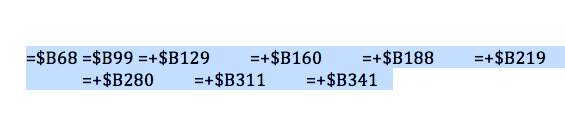
=sumif($G$1:$G$200,”=”&N1,$H$1:$H$200

the “=”&N1 references the value in N1 as the one to match and the $ symbols are needed so the formula can be copied.

Saturday, June 12th, 2010

Create your own Excel startup page

Here’s how to create a cool startup page for Excel – it has links to all your favorite workbooks so you can click on any of them to immediately open that file.

excel step1 Create your own Excel startup page

Step 1

To a new workbook, add one picture for every workbook you want to link to your startup page by choosing Insert > Picture > ClipArt. Size and arrange the images neatly. Choose Tools > Options > View tab and disable Gridlines, Row & Column Headers, Horizontal Scroll bar, Vertical Scroll bar, and Sheet Tabs.

excel step2 Create your own Excel startup page

Step 2

Right click one image, choose Hyperlink and link to a workbook you work with regularly. Type a description of the workbook in the Screentip dialog. Link each image to a workbook. Protect the worksheet by choosing Tools > Protection > Protect Sheet and click Ok.

 Excel step3 Create your own Excel startup page

Step 3

Choose File > Save As > and select your XLSTART folder which is likely to be: C:\Documents and Settings\<username> \Application Data\Microsoft\Excel\XLStart. Name your file menu.xls, close it, exit and restart Excel. The menu workbook will appear every time you launch Excel – giving you one-click access to your favourite workbooks.

Tuesday, February 2nd, 2010

Excel VBA: What Sheet is that?

vba 754904 Excel VBA: What Sheet is that?When you’re working in Microsoft Excel Visual Basic for Applications, you may need to refer to a worksheet by name. This can be confusing because the sheet names are not necessarily what are displayed in the sheet tabs at the bottom of the screen.

There is only one way to know exactly what a sheet’s name is so you can refer to it by that name regardless of what the tab says. That is to view the Visual Basic Editor and select your project in the Project Explorer. Here you will see each sheet listed by name with the sheet tab name in brackets after it.

If you want to refer to a sheet by name in your VBA code use the sheet name at the left (not the one in brackets) in the Project Explorer.

This will ensure that you always use the exact sheet that you expect to be using in your Visual Basic application.

Thursday, July 23rd, 2009

Excel: Monthly totals for daily data

pivottable 711553 Excel: Monthly totals for daily data
One issue I was faced with recently was the need to calculate monthly totals for worksheet data that was recorded for every day of the month for a few years.

I had a long series of dates with corresponding data in the cells to the right which I had downloaded from the web. The data needed to be viewed as monthly totals rather than as daily values for me to have a better picture of the changes over time.

The solution to doing this quickly and easily is a PivotTable. Here’s how to do it:

1
Select all the daily data including the column headings. If you have lots more columns of data than you plan to analyze, don’t worry, just select the lot for now.

2
In Excel 2007, choose Insert > Pivot Table. In the PivotTable Field List you now need to drag and drop fields into the respective boxes on the screen.

Drag the Date field into the Row Labels box and drag the field for the data that you want to analyze into the Sum Values box.

3
This gives you a list of dates and the data on the screen and you’re over half way to your monthly totals.

Click on one of the dates in the Row Labels column to select that cell, right-click and choose Group to display the Grouping box.

4
Click both the Month and the Years values in the list so that both are highlighted. Then click Ok.

5
Now your data will reappear grouped by the year and by the month within that year.

This allows you to analyze how the data has changed over time more easily than viewing it by day.

6
From here, to chart your data, click somewhere in the PivotTable, choose Insert > and then from the Chart area on the Ribbon click the Column option to create a column charts.

Select the chart sub-type and you’ll create a chart displaying the monthly totals from the PivotTable.

A PivotTable, while a little harder to get a feel for creating than a typical Excel formula, is actually the quickest and easiest way to summarizing this type data.

Wednesday, January 14th, 2009

Custom formats in Excel

formatting 707950 Custom formats in Excel
Ok, so here’s the scenario, you want to enter a value like 20Kg (or 44 lb) into an Excel cell. All goes well until you try to multiply the value. Instant disaster. Your number isn’t a number it’s a piece of text and you can’t multiply or add text. You can’t divide or minus text or find the 4th power of it either – you get the idea.. it’s basically a useless entry – pretty but useless.

SO, how do you format a cell so it displays the Kg after the number but so it still treats the entry as a number? I’m so glad you asked!

The answer is to create a custom number format. Click the cell or a range of cells and choose Format > Cells > Number tab. Select the Custom entry and type something like 00.00 “kg” in the text box and click Ok. Now, enter the numbers again as 20 or 40 etc and the kg will appear automatically after the number courtesy of the format – and the number, well it’s still a number so you can add, multiply, divide and do all sorts of other wonderful things to it as you like.

You can also add the text before a number. So, for all those lovely Canada dollars I get paid by the folk at Hub Digital Living where I write a monthly Office column, I type a Custom format like “CAN” 00.00 in my sheet where I record my payments. It’s all so easly when you know how.. and now – you do too..

Saturday, January 10th, 2009

Converting Imported data in Excel

I encountered an interesting problem with Excel this morning when I tried to import data copied from a table in a PDF file. The table was bad news from my accountant about my retirement investments. I won’t be retiring any time soon icon wink Converting Imported data in Excel

The point of the issue however was that the data when copied and pasted into Excel came in neatly aligned in column but the numbers wouldn’t add up because they’d been added as text.

The solution to this is to use a feature previously called data parsing. What it does is to look at the data and convert it from one format to another. My only alternative would have been to select each cell, double-click on the cell to get the number on the screen, remove any characters that were causing issues such as any leading dollar signs or spaces and then press Enter to convert the text value into a number.

Luckily data parse does the work for you almost instantly. To do this, select the column of numbers that you’re working on. If you have a whole lot of columns to do, you still have to do each column one at a time. That’s the bad news; the rest of it is all good.

Select the column of numbers (if it includes some text entries that doesn’t matter), choose Data > Text to Columns and then select Delimited as the Original Data Type and click Next.

Click Next again and this is where you get to do the work. To convert text to numbers select the General option. If you have dates then select the Date option and select the date format that the data was created in. My values came from Australia so the date format used was dd-mmm-yy. Provided you select the date format that matches the dates you have, everything will convert just fine. Later if you want to show these in another format such as mm-dd-yy you do so using a date format. When you’re done, just click Finish.

The data will be instantly converted and you can move forward to do the same thing on the next column.

I estimate that this process took me about three minutes to do and on the data that I had it could have taken me half an hour or more to fix it all manually.

So next time you’ve imported data from an external source and when you need to convert text back into numbers check out the Data > Text in Columns option.

Page 1 of 212