Yikes! Just how do you resize a photo inside a PowerPoint or Word SmartArt placeholder
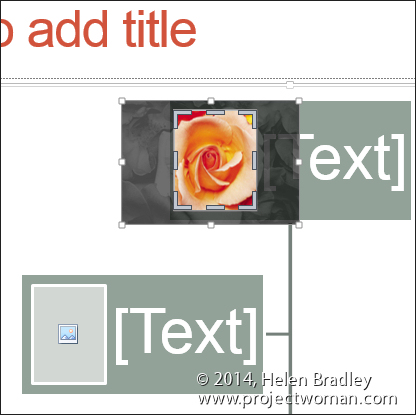
I got an email from a reader this morning. He has a PowerPoint slide (but it could as easily be a Word document or an Excel worksheet) and he wants to size a photo inside a placeholder. You see he was making an organization chart and he was dealing with lots of different head shots – all photographed differently. He wanted to make the faces the same relative size inside the placeholders – but to do this he had to get access to the photos inside the placeholders.
You see that’s the problem, every time you right click the placeholder and choose Size and Position you’re affecting the placeholder not the thing inside it! The solution is to use the Crop tool – so click on the placeholder and choose Picture Tools > Format tab and click the Crop tool.
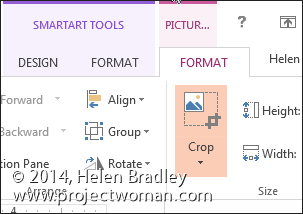
Now you get handles around your photo and you can drag the handles to resize the image and you can move it to change its position inside the placeholder. When you’re done, click Crop again to finish. Easy when you know how.