


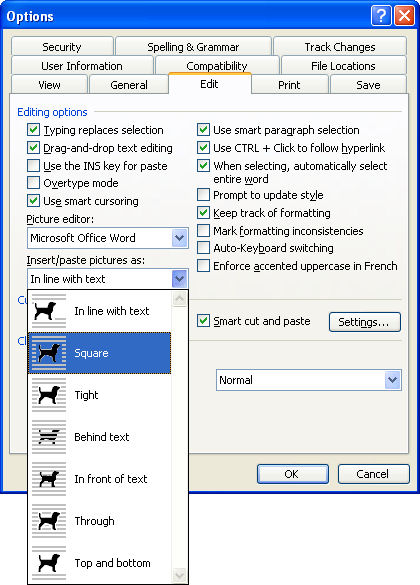
In recent implementations of Word they broke the image insertion tool. When you insert an image it comes in as “Inline with text” which means it won’t move, it breaks up lines and, in general, looks awful.
Luckily it’s fixable and permanently so. To do this, choose Tools, Options, Edit tab. From the Insert/Paste pictures as dropdown list choose something like Square or In front of Text (in fact anything other than In line with text). Click Ok and the change will be permanent. Although you can, of course, always change the setting for any inserted image if you really do want to put it inline with text by selecting the option from the Picture toolbar on an image by image basis. My bet is you won’t ever do it though!
Lately when a place images on the page, etc. and I go to print part of the picture on the right side will not print.