Sunday, March 25th, 2012

Use Lightroom Presets in Adobe Camera Raw

lightroom presets in ACR opener Use Lightroom Presets in Adobe Camera Raw

If you’re like me, you have some presets that you’ve created in Lightroom that you would like to use in Adobe Camera Raw. Unfortunately the format of the preset files in each program is different so you can’t just install a Lightroom preset in ACR. However you can make an ACR preset from a file that has had that same preset applied to in Lightroom. Here’s how:

Apply the Preset

To begin, open an image in the Develop module in Lightroom. Without applying any other changes to the image, apply the Preset that you want to take to ACR. Here I have applied one of the free Wonderland presets from wonderlandpresets.com.

lightroom presets in ACR 1 e1331138958918 Use Lightroom Presets in Adobe Camera Raw

Export the Image

Now export the image as a DNG file so that the changes will be written to the file. To do this, right click the image and choose Export > Export to DNG and export the image to folder of your choice.

lightroom presets in ACR 2 Use Lightroom Presets in Adobe Camera Raw

Open in ACR

Launch Windows Explorer and locate the image on disk. Right click it and choose Open With > Photoshop CS5. Because it is a DNG file, it will open automatically in ACR.

lightroom presets in ACR 3 e1331139051961 Use Lightroom Presets in Adobe Camera Raw

Create the Preset

Click the Presets tab and click the Create New Preset option at the foot of the Presets panel. Type a name for your preset and then select the options that you want to include as part of the preset. Type a name for the preset and click Ok.

lightroom presets in ACR 4 Use Lightroom Presets in Adobe Camera Raw

The preset will now be available from the Presets panel in ACR and will be able to be used to adjust any image.

lightroom presets in ACR 5 Use Lightroom Presets in Adobe Camera Raw

Features not included

You should note that while most of the Lightroom adjustments that can be stored in a Lightroom Preset can also be saved as an ACR Preset, one exception is any Graduated Filter adjustment.

In Lightroom any adjustments you make using the Adjustment Brush cannot be saved in a Lightroom preset and in ACR those made using the Graduated Filter cannot be saved either. You will see the Graduated Filter adjustments that you made in Lightroom in ACR if there are any but you cannot save them in your preset as a Graduated Filter adjustment. What you can do however, is to save the settings for the Graduated Filter but not its placement as a separate setting. To do this, click the Graduated Filter icon in ACR to select the tool then click the Graduated Filter to save the settings for. Click the icon in the top right of the Graduated Filter panel and choose New Local Correction Setting and save it giving it a name.

You can apply this to an image in future using the Graduated Filter tool – just select the setting to use from this menu and drag to create the Graduated Filter for the image. The solution isn’t perfect but it can save you some work as shown here with the two Graduated Filters which are part of my Orton Preset for Lightroom. I can apply the preset then switch to the Graduated Filter and quickly apply the two Graduated Filter adjustments with their individual settings.

lightroom presets in ACR 6 e1331139121736 Use Lightroom Presets in Adobe Camera Raw

Advantages of taking Lightroom presets to ACR

One of the reasons you may want to take presets from Lightroom to ACR using this process is to take advantage of the free presets available for Lightroom. There are lots more of these than there are presets for ACR. If you use ACR as well as Lightroom then having your favorite presets available in both program will be useful.

Saturday, February 4th, 2012

Slideshow Titles with Identity Plates in Lightroom

LR identity plates and slideshows opener Slideshow Titles with Identity Plates in Lightroom

Identity plates are one of the best kept secrets in Lightroom. There are lots of ways that you can use Identity Plates in Lightroom not only to customize the interface as I discussed in this post: http://projectwoman.com/2011/11/personalize-lightroom-with-identity-plates.html but also customize your print, web and slideshow applications.

In this post, I’ll show you how to create and use identity plates to create custom title and ending slides in the Lightroom Slideshow module.

Create a slideshow

For a slideshow, it is a good idea to start by placing all the images in a collection – then select the collection and switch to the Slideshow module.

From the toolbar choose All Filmstrip Photos to set up the slideshow with all those images.

From the Template Browser choose the Default template. Chose a background color by opening the Backdrop Panel and choose Background Color and sample a color to use.

LR identity plates and slideshows 1 Slideshow Titles with Identity Plates in Lightroom

You can add a background color with or without a color wash. You can also set a background image – for example use an image from your slideshow with a reduced opacity as the background.

Here I have settled for a plain dark gray background.

From the Layout panel select Show Guides and make sure Link All is selected and then drag in on the guides so you have some space around the images.

LR identity plates and slideshows 2 Slideshow Titles with Identity Plates in Lightroom

By unlinking the guides, you can set one guide to be smaller than the others – I like to make the top margin smaller than the others to push the images higher on the screen.

Use your Identity Plate

The first place you can use an identity plate is in the Overlays panel. This Identity Plate will sit on each slide and it will show as the slideshow plays. For this, I like to use a plain text identity plate so make sure Identity Plate is checked and then click the down-pointing arrow and select an identity plate that you’ve already created.

LR identity plates and slideshows 3 Slideshow Titles with Identity Plates in Lightroom

Alternatively, click Edit and type identity plate information into the box and then select it and select a font, font size and color. When you’ve done this, click the Custom button, click Save as and give your identity plate a name.

LR identity plates and slideshows 4 Slideshow Titles with Identity Plates in Lightroom

It doesn’t matter what color you have selected for the Identity Plate text because you can select the Override Color checkbox and select an alternative color for your text identity plate. Adjust the scale to a large value so that you can see the identity plate text on the screen, drag it into position and then fine-tune the scale and opacity to suit.

LR identity plates and slideshows 5 Slideshow Titles with Identity Plates in Lightroom

Identity Plate for a Title

Another place you can use an Identity Plate is the Titles panel. Here you can add an Intro and Ending screen to your slideshow. While you could use a simple identity plate configured for the purpose, you can also use an image.

Here I have taken one of the images from the slideshow into Photoshop by right clicking it and choose Edit in Photoshop.

I cropped a portion of the image and used it to create an interesting starting slide for the slideshow. Here I added some text to the image to introduce the slide show. Where possible, it’s a good idea to leave as much of the image transparent as possible so you keep the file size small.

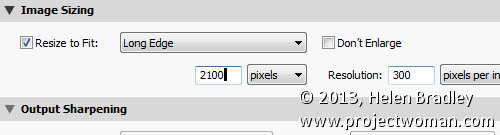
Size the image to approximate the size of the slideshow window – I used 1408 x 800 pixels.

Save the image in Photoshop as a PNG file so it retains its transparency. Later you can control the background color for the title slide by selecting a color from the Intro screen color selector rather than having the color already in the Identity Plate image.

LR identity plates and slideshows 6 Slideshow Titles with Identity Plates in Lightroom

Now, back in Lightroom, in the Title panel click Add Identity Plate and select Edit and this time select Use a Graphical Identity Plate. Click Locate file and either drag and drop the image into the window or find the image on disk. Click Ok to load it as an identity plate – you may be prompted that it is very big – click Use Anyway to continue.

The image will appear for a second or two on the title slide and it will then disappear from the main screen but you will see it in the Titles panel. It will probably be too small so adjust the Scale slider to increase its size.

LR identity plates and slideshows 7 Slideshow Titles with Identity Plates in Lightroom

You can go ahead and create a similar graphical identity plate if desired for the ending screen.

LR identity plates and slideshows 8 Slideshow Titles with Identity Plates in Lightroom

By creating a second Photoshop image in the same way and importing it as a Graphical Identity Plate you can have a different and custom ending screen for your slideshow.

To view the slides and your new titles, click the first image in the slideshow and click the Play button.

Tuesday, April 26th, 2011

Permanently fix Word’s image insert behavior

word image insert default setting Permanently fix Words image insert behavior

I was at dinner the other night and talking computers with some friends. We were joking about Excel not being a word processor when the subject of images came up. And Lo! and behold someone suggested that Excel was a much better option to use than Word so far as images are concerned.

This has been a particular issue for me for years. You see Word inserts all images, by default as in line with text which is the option you’d probably never want to use.

I promised my friends to show them how to fix Word – permanently – so images get inserted as you’d want them to be – with a square wrap around. It’s a good starting point and my recommended default for Word. You can change the wrapping if you want but 99.9% of the time this is the setting you’ll want to use.

In Word 2003, choose Tools > Options > Edit tab and from the Insert/Paste Pictures as dropdown list choose Square and click Ok.

word 2003 image insert default setting Permanently fix Words image insert behavior

In Word 2007 choose File > Word Options > Advanced tab and locate the Cut, Copy and Paste group. From the Insert/Paste Pictures as dropdown list choose Square and click Ok.

word 2007 image insert default setting Permanently fix Words image insert behavior

In Word 2010 choose File > Options > Advanced tab and locate the Cut, Copy and Paste group. From the Insert/Paste Pictures as dropdown list choose Square and click Ok.

word 2010 image insert default setting Permanently fix Words image insert behavior

Now you know how to fix it … spread the love and tell a friend!

Friday, November 26th, 2010

Crop an image to size in PowerPoint 2010

PowerPoint 2010 crop to size Crop an image to size in PowerPoint 2010

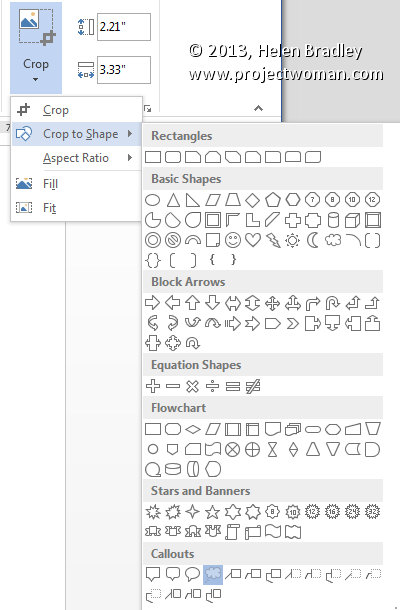
When you have an image in a PowerPoint presentation and you want to crop it to a specific size, click on the image, and from the Picture Tools > Format tab, select the Size and Position dialog by clicking in the dialog launcher in the bottom right corner of the Size group.

Click on the Crop group of options and then in the Crop Position area, type the dimensions that you want to crop the image to. Once you have done this, the image will be cropped to the desired size.

If there is not enough data in the image to crop it to that size, the image will be placed inside a placeholder the size you determined. Once you click Close to finish cropping the image you can increase the size of the image so it fills the placeholder by clicking on the Crop tool on the Picture Tools > Format tab and choose Fill. This increases the size of the image to fill the placeholder.

Tuesday, February 9th, 2010

Controlling Images in Word 2010

wraptext 700788 Controlling Images in Word 2010

For many years now Microsoft has made it hard for new users to control inserted images in their documents.

Unfortunately, Word 2010 is no exception and, by default, images are inserted into a new Word document as inline images. This means that they cannot be moved or easily positioned on the page without you needing to first change the image’s wrap settings.

This leaves hapless new users with absolutely no clue that this feature is available or needed much less where to find and set it.

To change the way that images are inserted into Microsoft Word documents to make it a one-step process that never needs to be tweaked, in Word 2010 choose File > Options and select the Advanced tab. Locate the Cut, Copy and Paste options and set the Insert/Paste Pictures As setting to Square, Tight, Behind Text, In Front Of Text, Through or Top And Bottom – in fact anything other than the default Inline With Text.

Once you’ve done this, when you insert an image into a document it will be inserted with the setting that you determined. This makes it easy to move the image around the screen and position it exactly where you want it to be.

If you have images in your document and if you need to change their wrapping so that you can work with them, click the image, click Picture Tools > Format and from the Wrap Text dropdown list, select Square or another setting (other than Inline with Text).

Microsoft, this default setting earns you a score of -10 it’s not the typically required setting and it doesn’t make good sense as a default.

Thursday, March 15th, 2007

Inserting Images in Word

Wordinsert 725048 Inserting Images in Word

In recent implementations of Word they broke the image insertion tool. When you insert an image it comes in as “Inline with text” which means it won’t move, it breaks up lines and, in general, looks awful.

Luckily it’s fixable and permanently so. To do this, choose Tools, Options, Edit tab. From the Insert/Paste pictures as dropdown list choose something like Square or In front of Text (in fact anything other than In line with text). Click Ok and the change will be permanent. Although you can, of course, always change the setting for any inserted image if you really do want to put it inline with text by selecting the option from the Picture toolbar on an image by image basis. My bet is you won’t ever do it though!

Tuesday, February 13th, 2007

Make room for graphics in Publisher

When you’re working on a Publisher document, chances are you may not have all the final images in hand. If you’re waiting on graphics, you can add a placeholder for each image to your Publisher file so you can allocate the space for the images and so everything else can be finalized in the meantime.

To do this, click Picture Frame and choose Empty Picture Frame then drag a frame into your document. Size it to the size required. Later, when the image comes in, you can add it to your placeholder by right clicking the placeholder and choose Change Picture, From File and locate the file to use.