


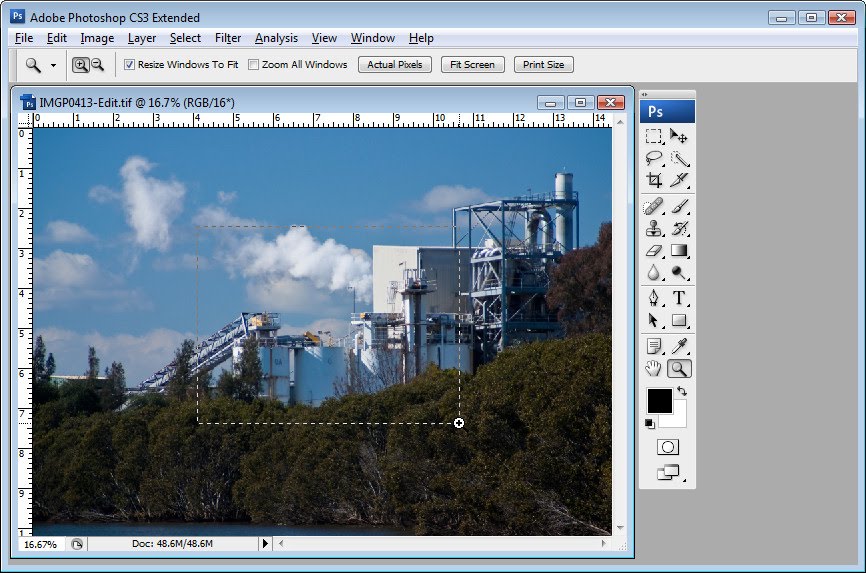
Continuing with my ‘tool’ secrets posts, here are 8 secrets of the Photoshop Zoom Tool.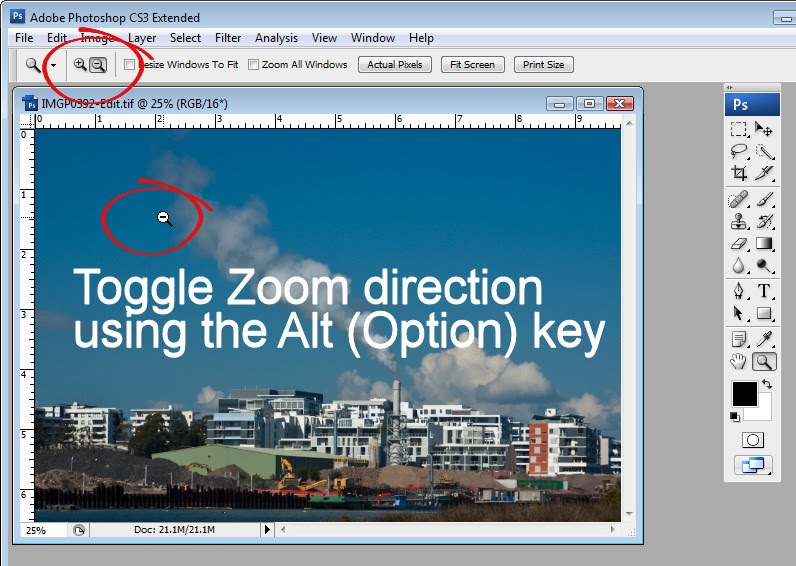
Quick toolbar shortcuts
The Zoom tool can be selected by pressing the letter Z – it’s an easy and handy shortcut to remember because it saves you from having to click the Zoom tool to select it.
However, once engaged, the Zoom tool operates in only one direction, in or out depending on the option you have selected on the Tool Options bar. You can toggle the Zoom direction by holding the Alt key (Option on the Mac) as you zoom.
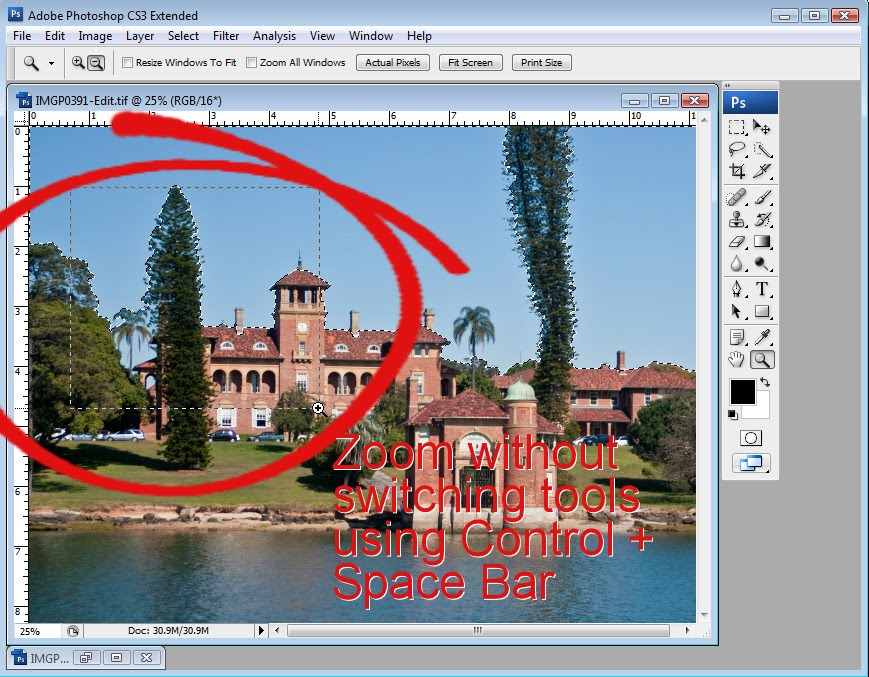
Zoom as you work
If you’re in the middle of painting, erasing or selecting an item and if you need to get access to the Zoom tool, press Ctrl + Space Bar (Command + Space Bar on the Mac) and you’ll get access to the Zoom tool’s current setting – which will be either Zoom In or Zoom Out depending on what you have selected. Use Ctrl + Alt + Space Bar (Command + Option + Space Bar on the Mac) to zoom the other way.
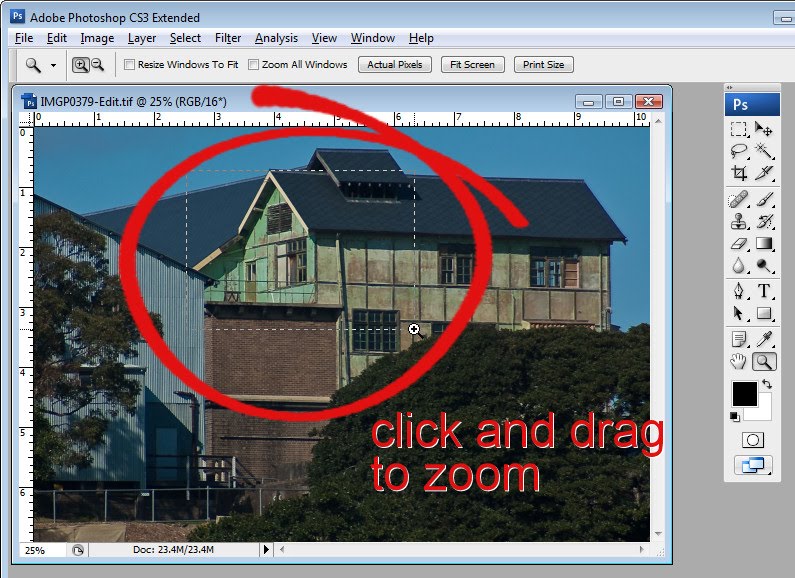
Zoom to a specific place
If your Zoom tool is set to Zoom In, you can zoom to a particular location in the image by dragging with the zoom tool over that location rather than simply clicking on it. If your tool is set to Zoom Out, press Alt (Option on the Mac), and drag over the place on the image that you want to focus on.
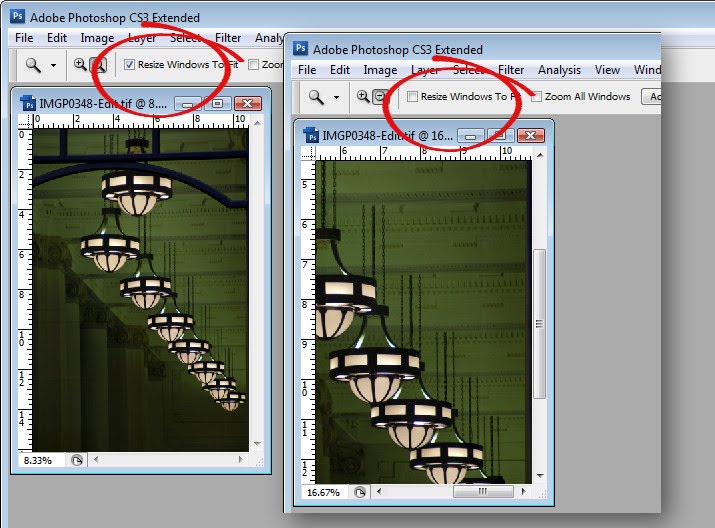
Size the window as you zoom
When the Zoom tool is selected, the Tool Options bar has a checkbox for Resize Window To Fit. Enable this and the window around the image will be resized to fit the zoomed image so you won’t have any space between the image and the edge of the window. With this option disabled, if you shrink the image, the window stays the same size and grey area is added around the image between it and the window edge. If you zoom in with this option disabled the window stays the same size as you zoom.
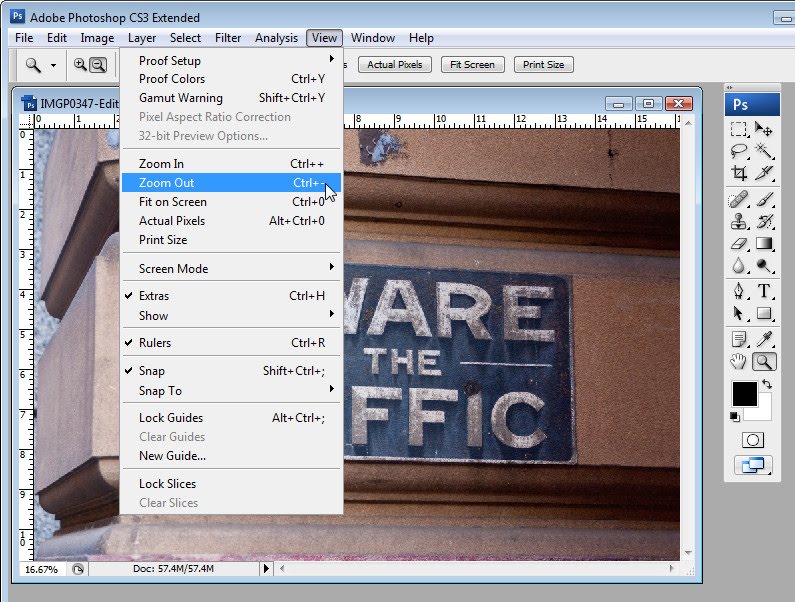
Other zoom options
Some Zoom options can be selected from the View menu such as Zoom In, Zoom Out, Fit On Screen, Actual Pixels and Print Size. Each of these can also be selected using keyboard shortcuts such as Ctrl + + to zoom in, Ctrl + – to zoom out. Keystrokes appear in the menu opposite each item.
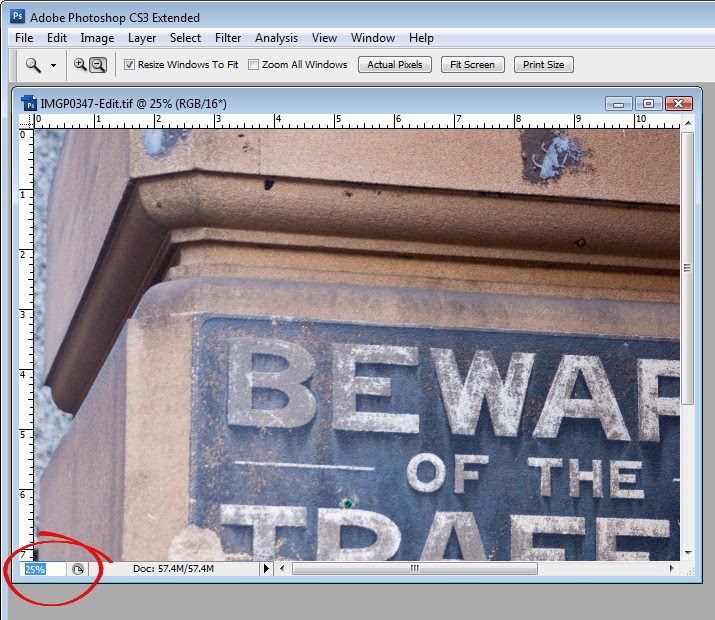
Zoom via the Status Bar
The current zoom percentage is shown in the left side of the image window’s Status Bar. To zoom to a particular percentage level such as 150%, type 150 in the Status Bar box and press Enter.
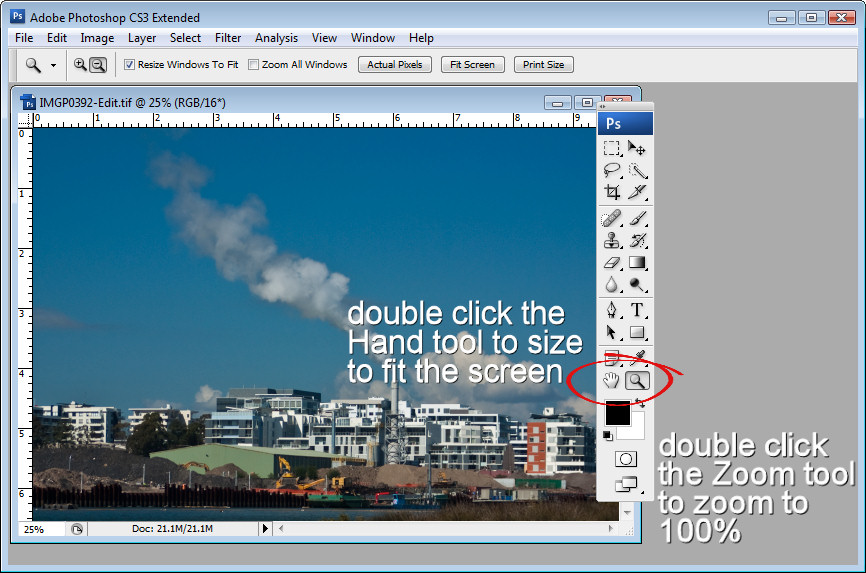
Hidden Zoom Options
To quickly zoom an image to 100% size, double click the Zoom tool in the Tool Palette. The Hand tool can be used to size the image to fit the screen – to do this, double click the Hand tool. Exactly how big the image is when it is set to “fill the screen” depends on the position of toolbars and palettes.
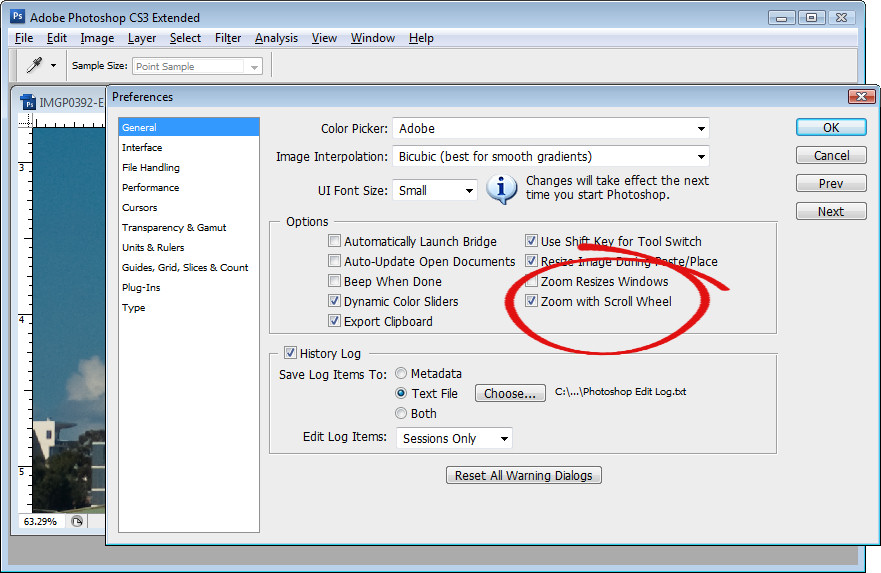
Zoom with the mouse
To zoom with your mouse wheel, choose Edit > Preferences > General and enable the Zoom with scroll wheel checkbox. Then you can roll the mouse wheel to zoom in and out of the image.
Post a Comment
Please feel free to add your comment here. Thank you!