


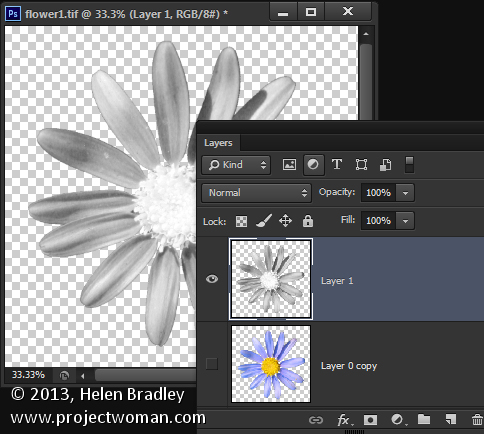
Want to take a channel and make it into a layer in Photoshop – Easier than you might think, and here’s how…
Sometimes you want to get a high contrast version of your image as a new layer in the image and sometimes the channels palette has just the layer you want. Luckily it is easy to make a channel into a layer.
To see this at work open an image – flowers are great for this. Choose Window > Channels and click a channel – typically the Green channel is the best (although for this blue flower red is the best – but that’s unusual). You should see a black and white image.
Press Control + A (Command + A on the Mac) to select the image and press Control (Command) + C to copy it.
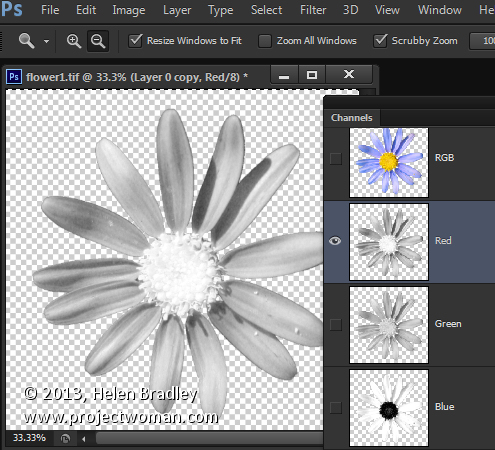
Now reselect the RGB channel in the channels layer so you see your image back. This is critical and also the most overlooked step.
Add a new layer to the image by selecting Layer > New > Layer. Click in it and press Control (Command) + V to paste the selection back into the image – it comes in as a new layer. Simple when you know how.
A very nice resource of photoshop tricks. Thanks for the share!