Tuesday, August 18th, 2009

An Adjustable Black and White Conversion

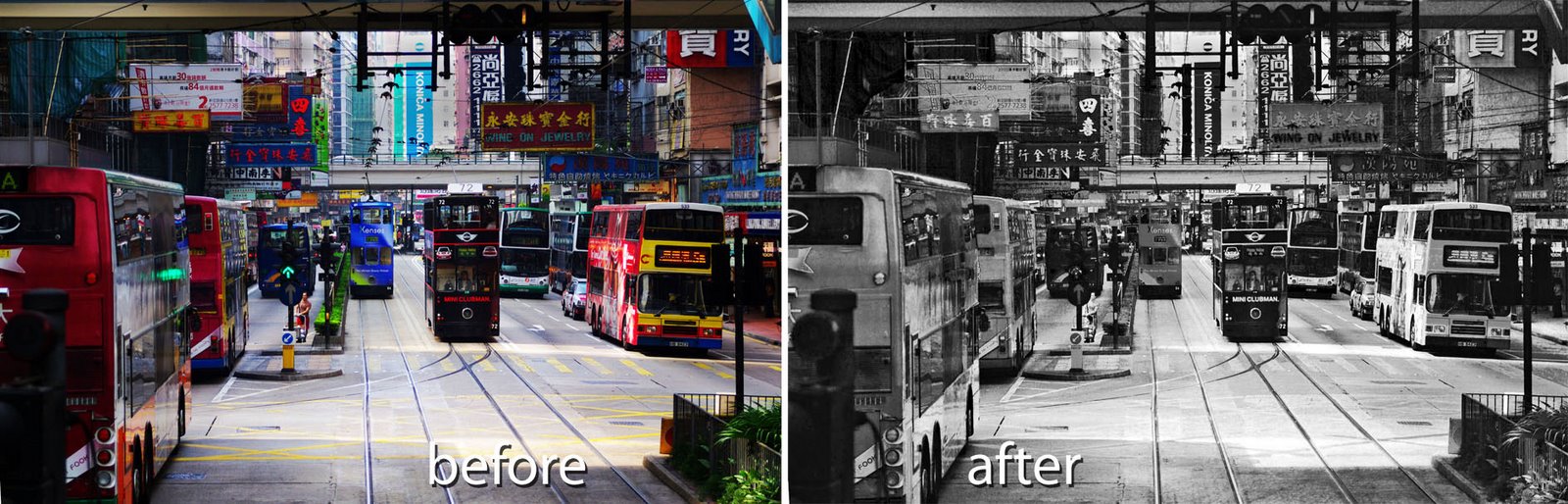
pse beforeandafter 721066 An Adjustable Black and White Conversion

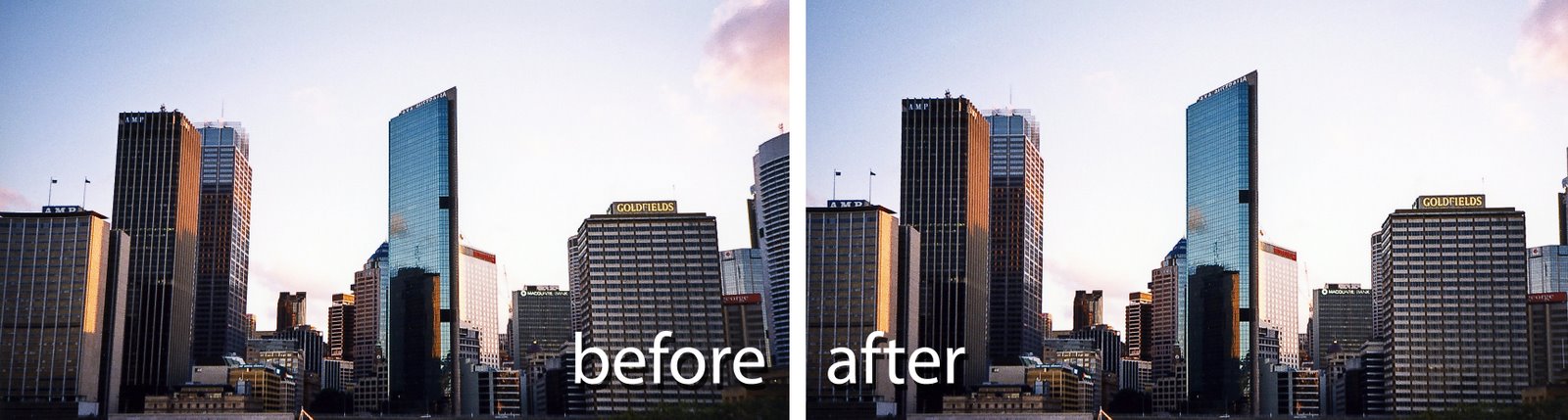
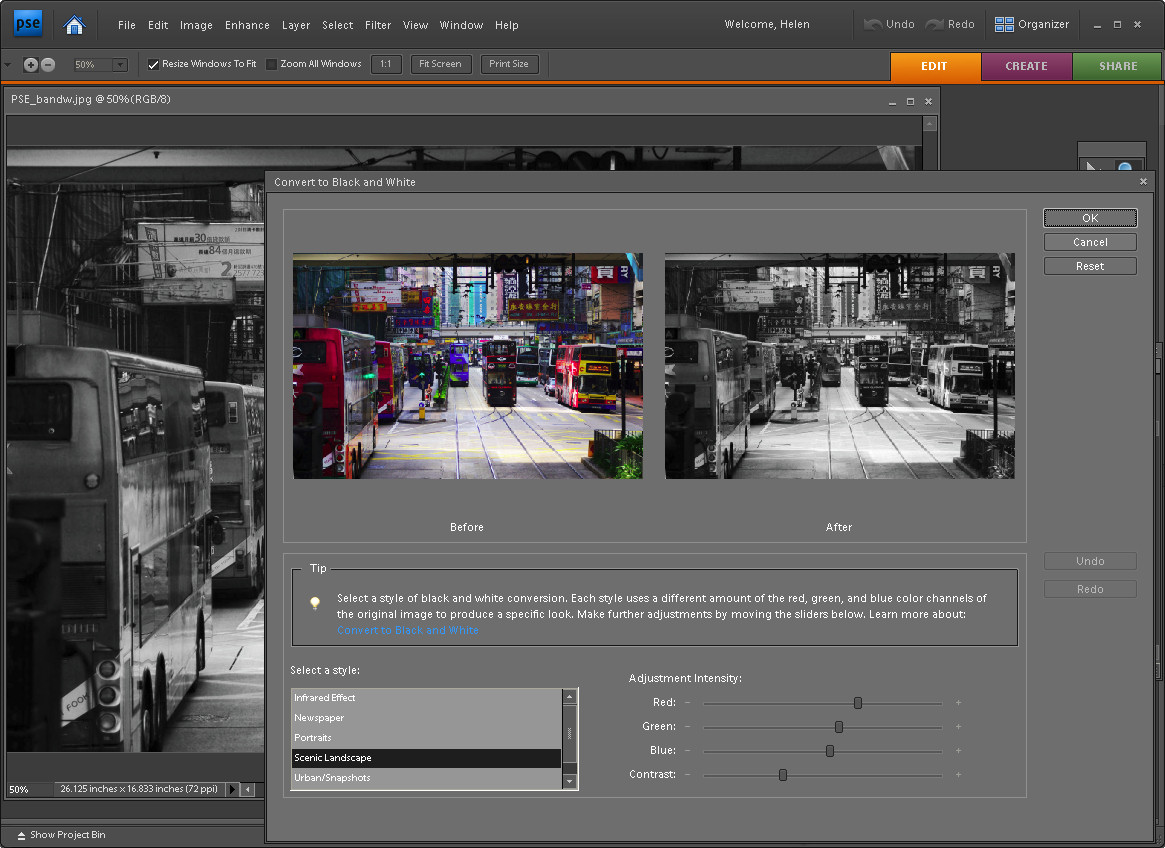
Most photo editing programs offer multiple ways to convert to black and white and Photoshop Elements is no exception. In fact it has a great Black and White conversion tool which is marred by the very small preview images you get to work with. Additionally, there is no zoom feature so you’re stuck with seeing your image in miniature (see image), or you find another way to make the conversion.

pse problem 720467 An Adjustable Black and White Conversion

Here’s an alternative method of converting to black and white in Photoshop Elements which lets you work on the image at any size so you can see what you’re doing. It also works in Photoshop:

pse step1 720500 An Adjustable Black and White Conversion

Step 1
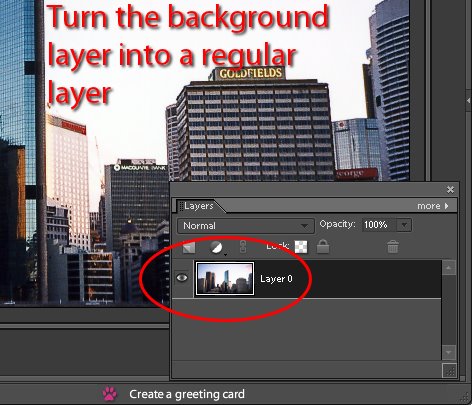
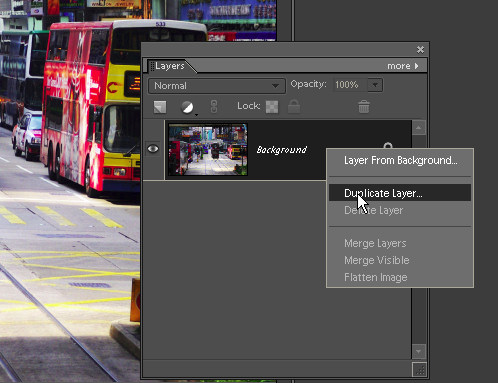
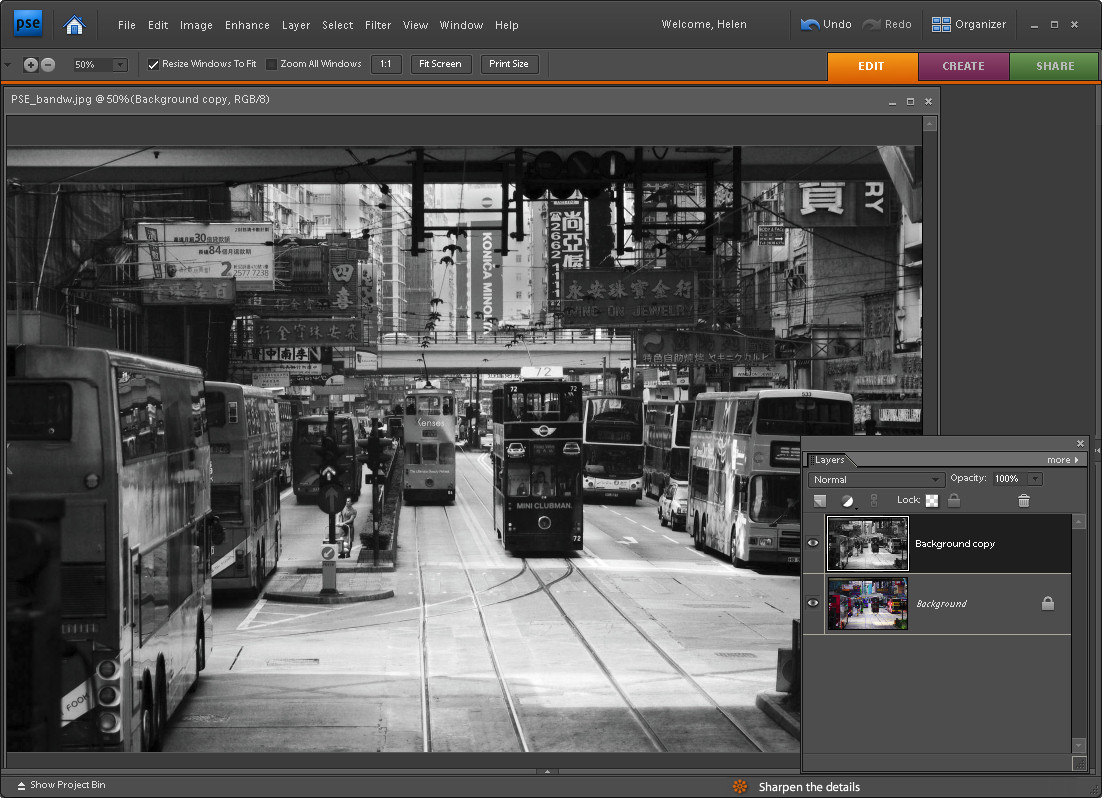
Open your image Photoshop Elements and duplicate the background layer. Do this by first displaying the Layers palette by choosing Window > Layers, right-click the Background layer and choose Duplicate Layer.

pse step2 758115 An Adjustable Black and White Conversion

Step 2
Select the topmost layer and choose Enhance > Adjust Color > Remove Color. This converts the image to a black and white image.

pse step3 758152 An Adjustable Black and White Conversion

Step 3
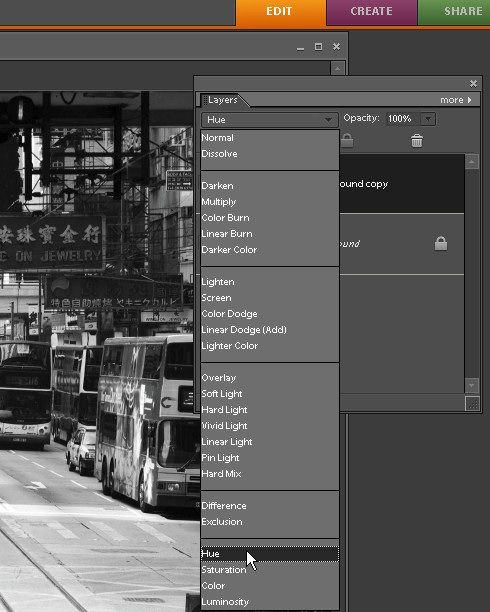
From the Blend mode dropdown list in the Layer palette, select the Hue blend mode. This ensures the top layer’s hue (color) shows but uses the layers below to provide the lightness and saturation for the image. We can now adjust the bottom layer to change the black and white image.

pse step4 753895 An Adjustable Black and White Conversion

Step 4
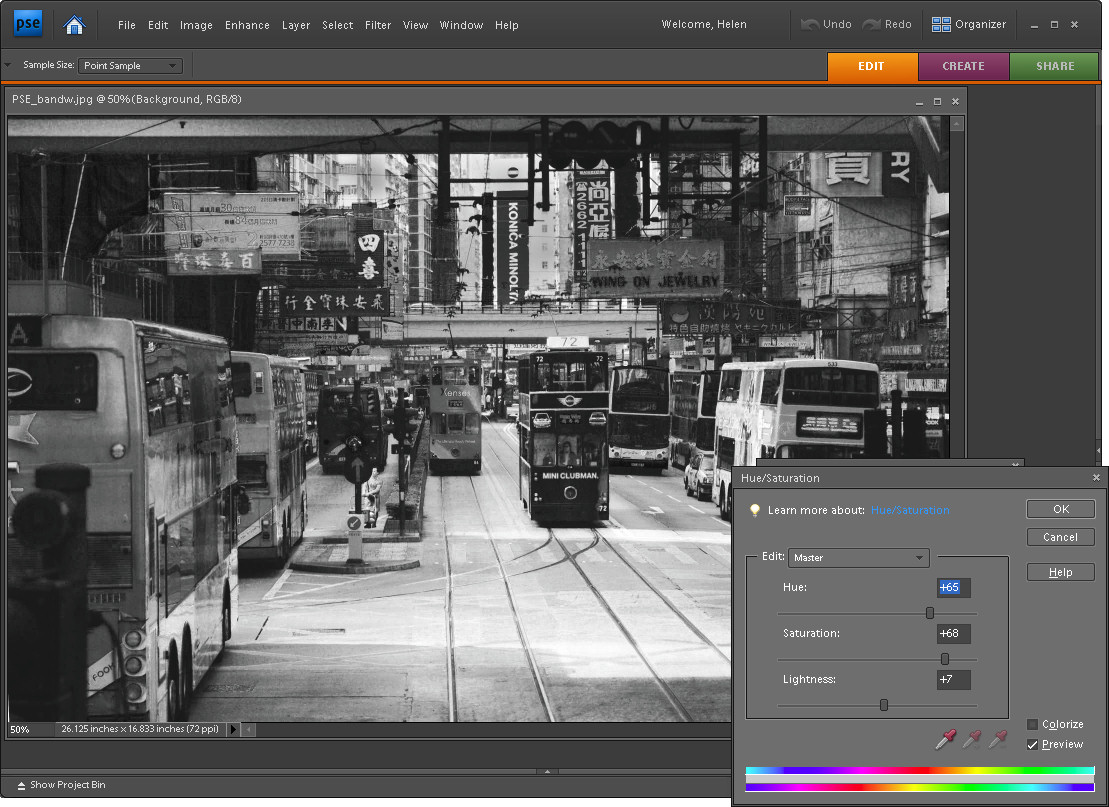
Select the bottommost layer in the image and select Enhance > Adjust Color > Adjust Hue/Saturation. This opens the Hue/Saturation/Lightness dialog. You can now select any of the sliders and drag them in either direction and you’ll see as you do so that the black and white image changes.

For example, adjusting Lightness will adjust the lightness and darkness of the image itself. Adjusting Saturation will also make the image darker or lighter. Use the Hue slider to change the colors in the underlying image with the result that different colors will tend towards being light and others tend towards being dark. For example, in this image, changing the Hue made a significant difference on some of the signs over the street – at one position the text was all the same shade of gray and in another position the text was lighter against a dark sign. Pick a slider position that works best for your particular image.

pse step5 753943 An Adjustable Black and White Conversion

Step 5
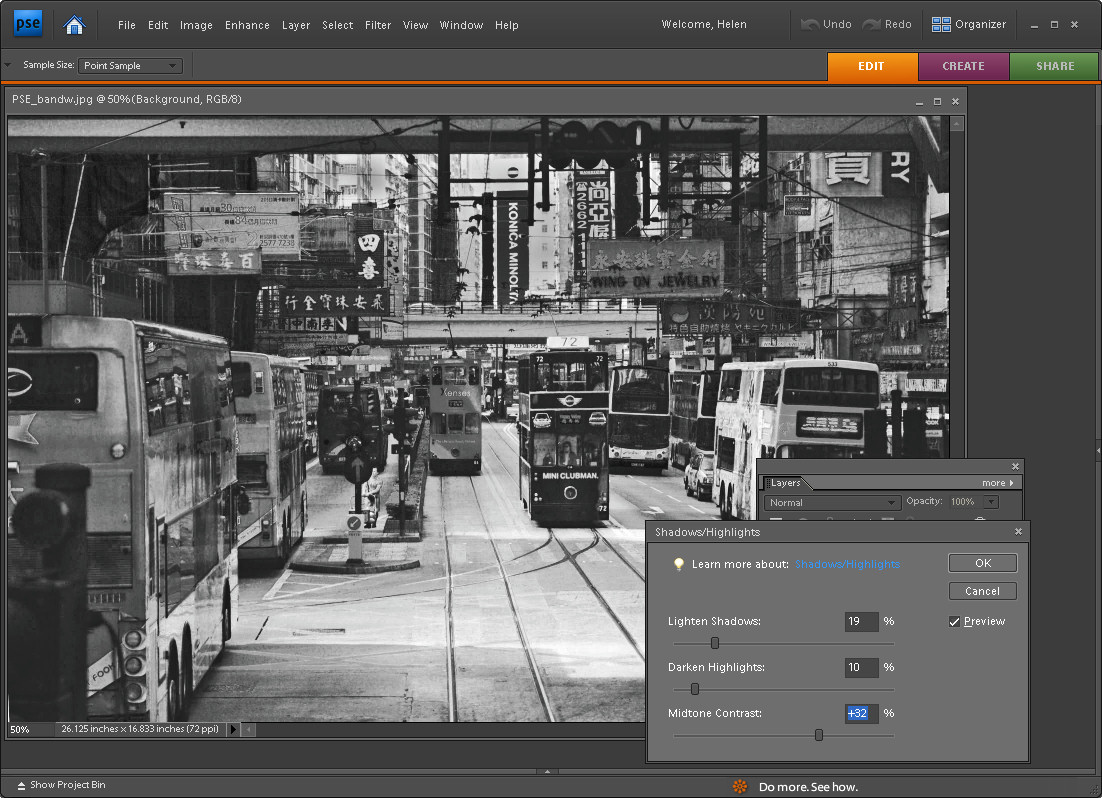
To adjust the contrast in the image, with the bottom layer still selected, choose Enhance > Adjust Lighting > Shadows and Highlights. Drag on the sliders to adjust the tonal range in the image. You can darken the lighter areas, lighten the shadows and add some contrast to the midtones this way. With the preview option enabled, you will see the results at full size on the image as you work. You can also do the same with the Levels adjustment – again apply it to the bottom layer of the image.

When you are done, flatten the image by selecting Layer > Flatten Image.

This process allows you to convert an image to black and white while previewing the results at full screen size while you work and with quite a bit of creative control. I find it gives me a better appreciation of what my image will look like than using the very small dialog previews in the specialist black and white conversion tool.

Saturday, June 27th, 2009

Photoshop Elements: Spot sharpening with a faux layer mask

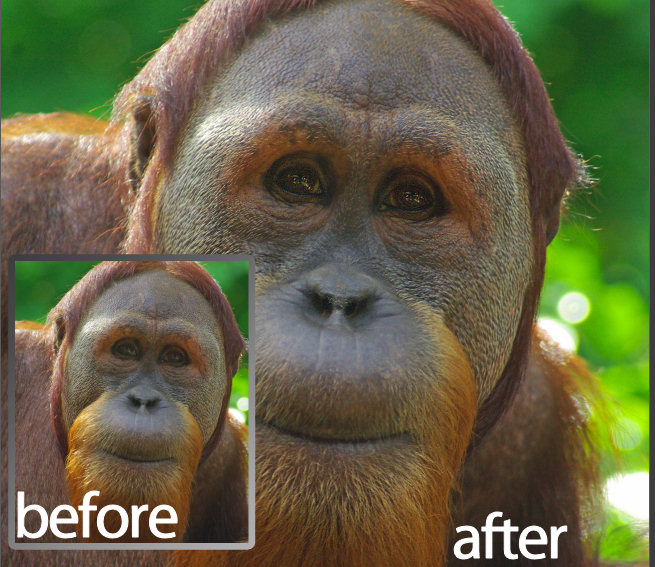
PSEM before after 723803 Photoshop Elements: Spot sharpening with a faux layer mask

One of the features on the wish list of most advanced Photoshop Elements users is Layer Masks. It is one of the key features that separates Photoshop Elements from Photoshop – but it doesn’t have to be that way. It is possible to create faux layer masks in Photoshop Elements if you know how – and today, I am going to show you how.

One of benefits of this approach to creating faux layer masks in Elements is that it uses features built into Elements and it doesn’t rely on a third party plug-in so it works with most versions of Photoshop Elements.

A bit of background
While Photoshop Elements doesn’t support layer masks for regular layers, it does provide them for all its adjustment layers. This faux layer mask solution takes advantage of this by forcing an adjustment layer’s layer mask to behave like a layer mask on a regular layer just as it does in Photoshop. The trick is to apply an adjustment layer to the image which does nothing to the image at all – so you get the benefit of the layer mask but without forcing any unwanted change on the image. Once you’ve done this you have a layer mask you can borrow.

In this step by step example, I’ll show you how to use the mask to paint some additional sharpening onto an image. What I’ll do is oversharpen an image – well beyond the level of sharpening which the image should have and then I’ll remove the sharpening with the mask and paint is back over selected parts of the image – again using the mask.

While this technique is shown using Photoshop Elements you can use the same technique in Photoshop – only in Photoshop you won’t need to use the fake mask as you can add a layer mask to the oversharpened layer itself.

PSEM step1 723837 Photoshop Elements: Spot sharpening with a faux layer mask
Step 1
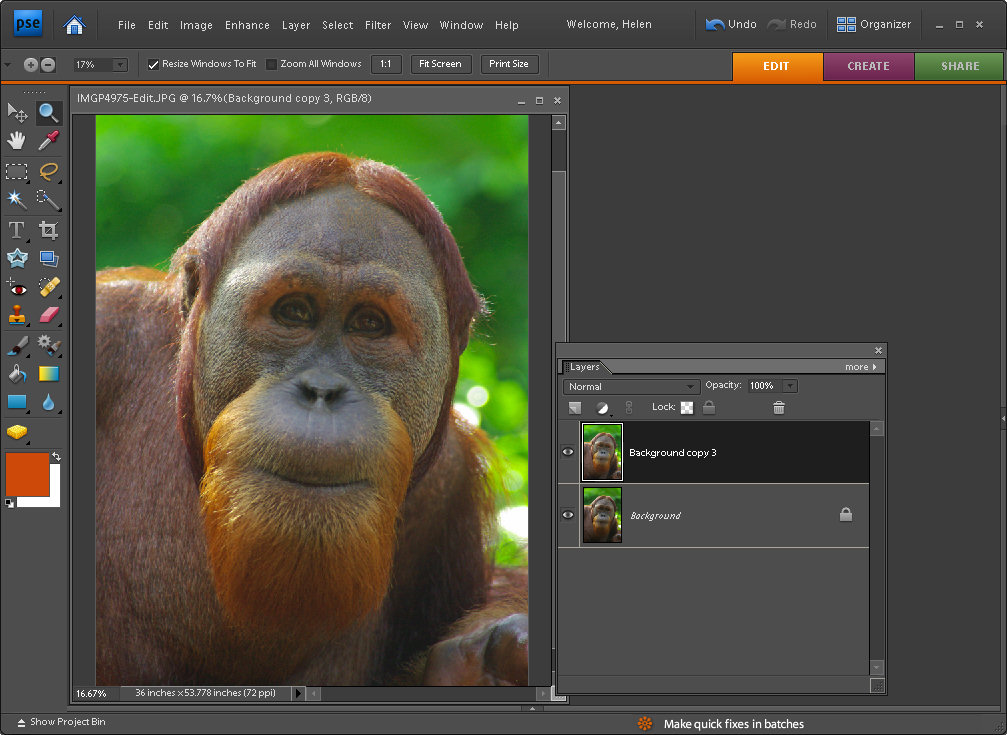
Finish editing your photo. If you have multiple layers, create a flattened version of image by selecting the topmost layer and press Ctrl + Alt + Shift + E (Command + Option + Shift + E on the Mac). This creates a new composite layer without flattening the layers.

Duplicate this layer by right-clicking it and choose Duplicate Layer. You should now have two identical image layers at the top of the layer stack.

PSEM step2 709878 Photoshop Elements: Spot sharpening with a faux layer mask
Step 2
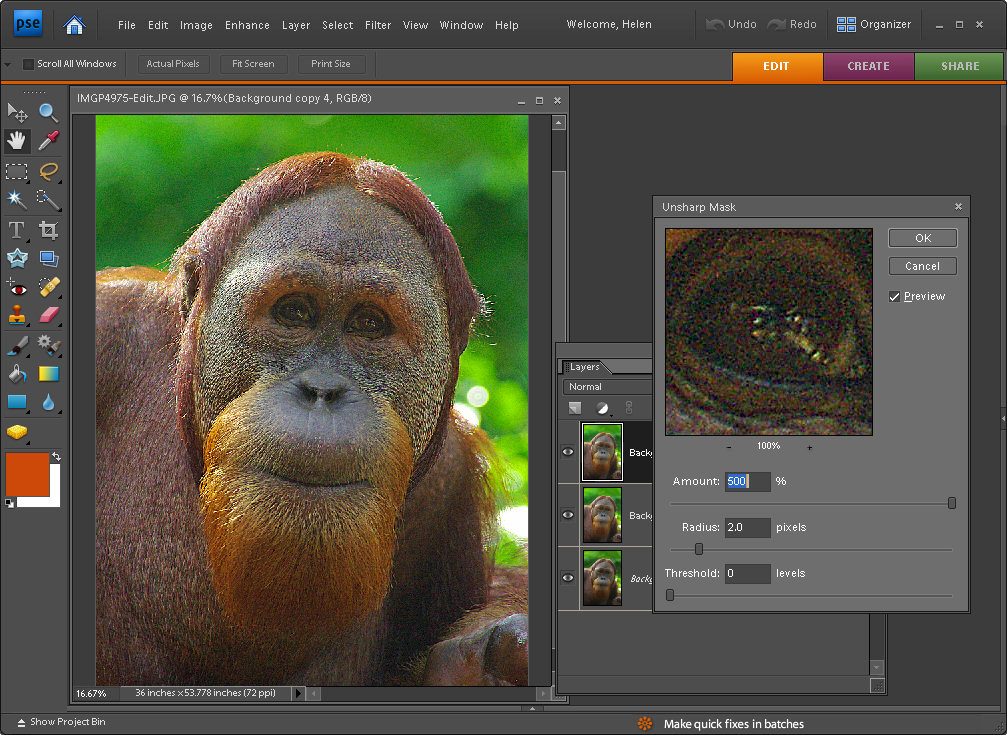
Select the topmost layer and choose Enhance > Unsharp Mask and apply excessive sharpening to the image. What you want is an extremely oversharpened image. You don’t want halos, just very heavy sharpening. In this example, I’ve used a radius of 2, a threshold of 0 and the full amount of 500. Click Ok.

PSEM step3 709907 Photoshop Elements: Spot sharpening with a faux layer mask
Step 3
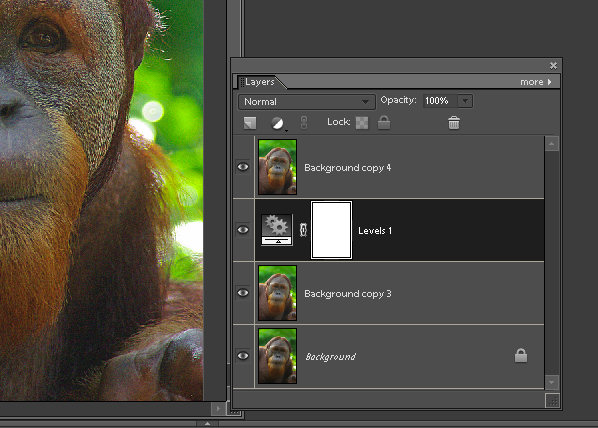
Add an adjustment layer by choosing Layer > New Adjustment Layer and choose either Levels or Brightness/Contrast or Hue/Saturation – you need an adjustment layer that doesn’t do anything to the image if you don’t alter its settings. Click Ok and don’t make any changes to the adjustment layer settings. Drag the adjustment layer so it sits between the two image layers.

PSEM step4 787343 Photoshop Elements: Spot sharpening with a faux layer mask
Step 4
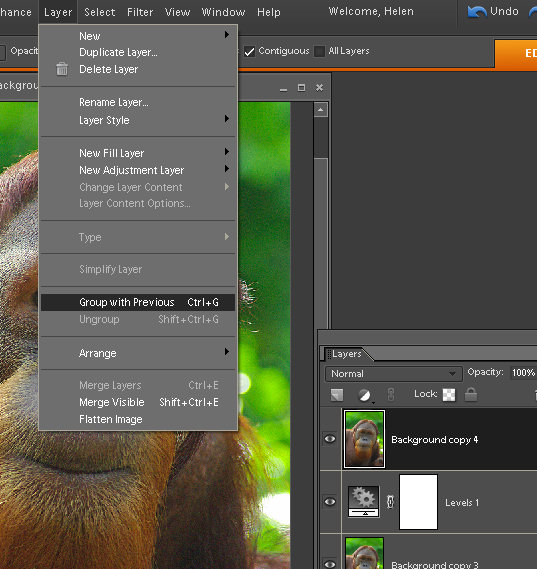
To create the fake layer mask, select the topmost oversharpened layer and choose Layer > Group with Previous. This attaches the oversharpened layer to the adjustment layer below limiting the effect of this layer to the area that is white in the adjustment layer mask – right now that is all the top layer.

PSEM step5 787368 Photoshop Elements: Spot sharpening with a faux layer mask
Step 5
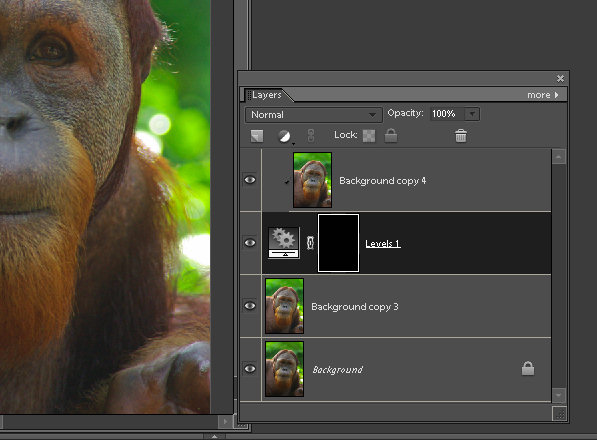
Click on the adjustment layer and click on the layer mask thumbnail which is the white box on the right side of the layer in the Layers palette. You should see a double border around it indicating that it’s selected. Fill this mask using the paint bucket tool with black. The entire oversharpening effect is immediately removed from the image.

PSEM step6 779674 Photoshop Elements: Spot sharpening with a faux layer mask
Step 6
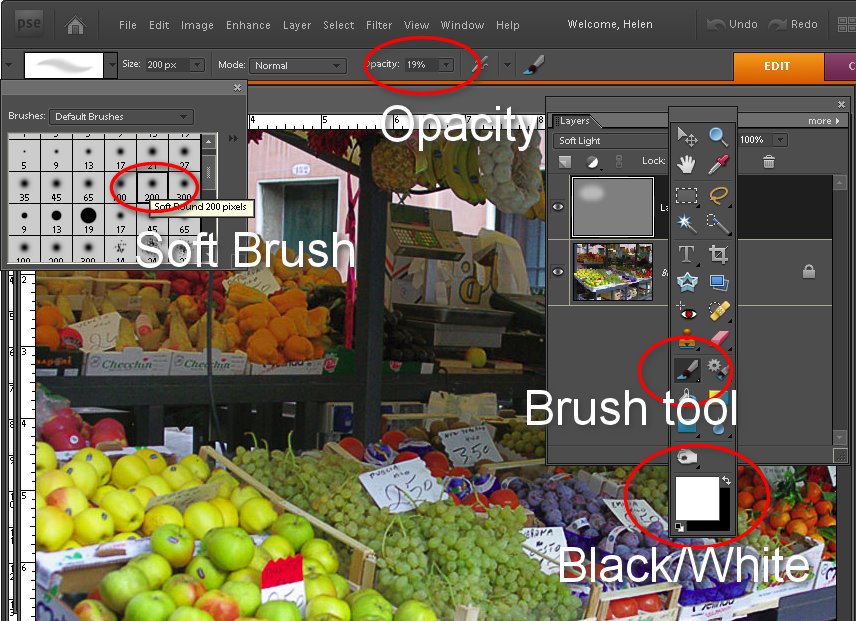
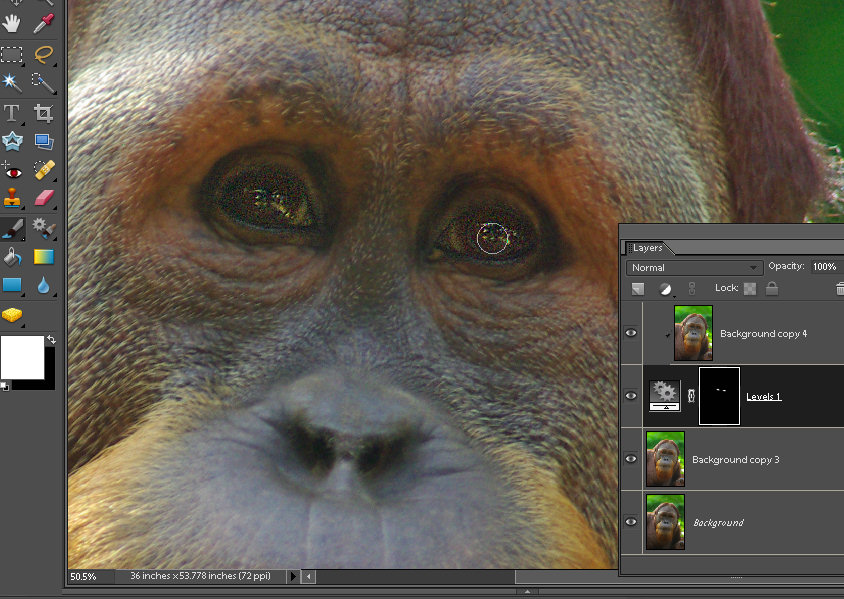
Select the brush tool and select a soft round brush. Adjust the opacity to around 25 percent and select white as the foreground color. With the layer mask thumbnail still selected, paint over the areas of the image that you want to apply additional sharpening to. In my case, I wanted to oversharpen the eyes on the orangutan.

PSEM step7 779709 Photoshop Elements: Spot sharpening with a faux layer mask
Step 7
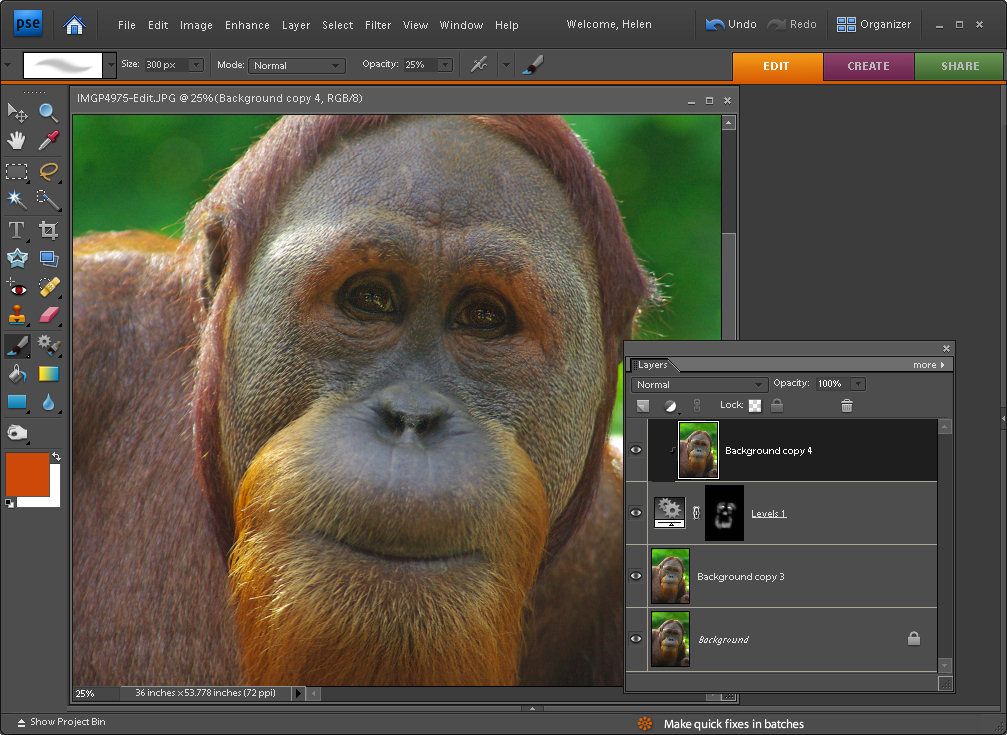
As you paint, the sharpening effect will built up – if you paint somewhere by mistake, set black as the foreground color and paint out the mistake. This is how a mask works – you paint with black to remove the effect on this layer (in our case you paint in black to remove the sharpening effect form the layer above because the two layers are grouped together) and you paint with white to reveal the effect.

When you are done, you can flatten the image or save it as a layered PSD file.

In future whenever you need to use a layer mask in Photoshop Elements, simply apply an adjustment layer to the image, drag it under the layer it should control and group the layers together.

Learn more: If you’re interested in learning more about sharpening, check out my very popular post on Understanding the basics about Sharpening.

Page 2 of 212