Monday, July 19th, 2010

Format Hyperlinks in PowerPoint 2010

PowerPoint format hyperlinks Format Hyperlinks in PowerPoint 2010If you’ve added an email link or a website URL to a PowerPoint slide, you’ll know that PowerPoint 2007 and PowerPoint 2010 automatically format the hyperlinks for you.

Because PowerPoint doesn’t use styles, it’s not obvious exactly how the formatting gets applied and how you control it.

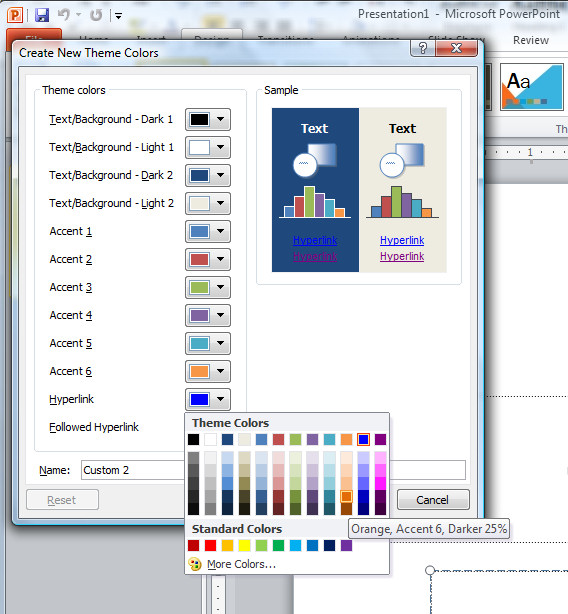
The first thing to know is that you simply can’t control the underlining, it’s there and it’s there to stay. You can, however, change the colors used.

Click the Design tab > Colors > Create New Theme Colors, locate the Hyperlink color and change it to something different if desired. To control the Followed Hyperlink color, select that option and change it.

You now need to save your changes as a custom color scheme, so type a name for your color scheme and click Save.

Now the chosen hyperlink color and followed hyperlink color will be used to format the hyperlinks in your PowerPoint presentation.

Monday, July 5th, 2010

Units of measure in PowerPoint

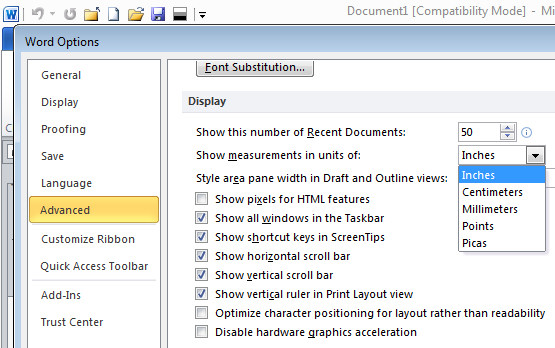
word units of measure Units of measure in PowerPoint

Ok, so its easy to change units of measure in Word by setting the Word Options to measure in inches or cm – depending on where you live. However, if you’re using PowerPoint don’t waste your time looking in PowerPoint for the setting – it ain’t there.

Instead, the measurements in PowerPoint are tied to your geography. If you live in the US you get inches, if you fess up to living else where you get your local units of measure. To change where you live, launch the Control Panel and look for a Regional settings option and set your location there.

For those of us who live in the US but who think imperial measurements suck big time and who yearn for the metrics of our childhood in the far off land of Aus, thanks to Microsoft we are s*** out of luck. You see, if I set my region as Australia or the Uk to get metrics, everything else goes pear shaped and Google starts serving up UK or Australian pages in preference to US ones, or I get £ by default in Excel. It’s all round not a good choice. So, I’ll have to suck it up and learn to embrace feet and inches – but provided you still call the land of your birth home chances are you’ll be just fine.

Thursday, December 17th, 2009

PowerPoint: Create handouts in Word

powerpoint handouts 776390 PowerPoint: Create handouts in WordSo, you’ve finished designing your presentation in PowerPoint and it’s time to you’re your final preparations.

One thing you will need is handouts for your participants. It is easy to use Microsoft Word to create custom handouts for your PowerPoint presentation.

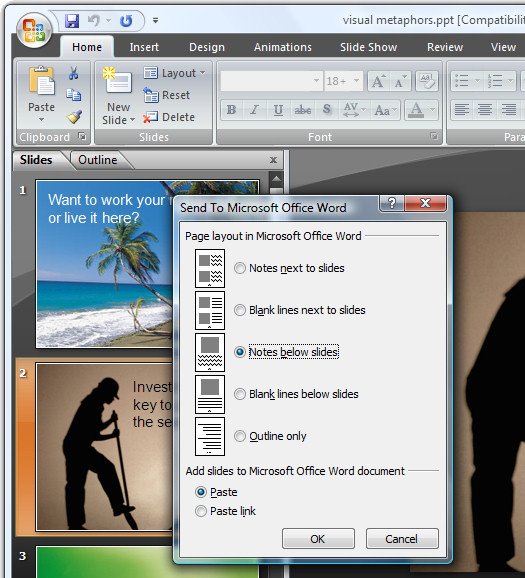
First complete the presentation so the slides are all is complete select the Office button and choose Publish > Create Handouts in Microsoft Office Word.

When the Send to Microsoft Office Word dialog appears, select the layout for the slides and text. There are various combinations of slides, notes and blank lines that you can choose from.

Select either the Paste or the Paste Link button depending on whether you want to embed the slides in the Microsoft Word document or simply link to them.

When you are done, click Ok and wait as Microsoft Word opens and the slides, notes and blank lines are created automatically for you in a new Word document.

Once the handouts are complete, you can format the document as you wish and add a cover page, headers and footers as desired and then print your slide handouts for distribution at presentation time.

Thursday, November 19th, 2009

PowerPoint Placeholders

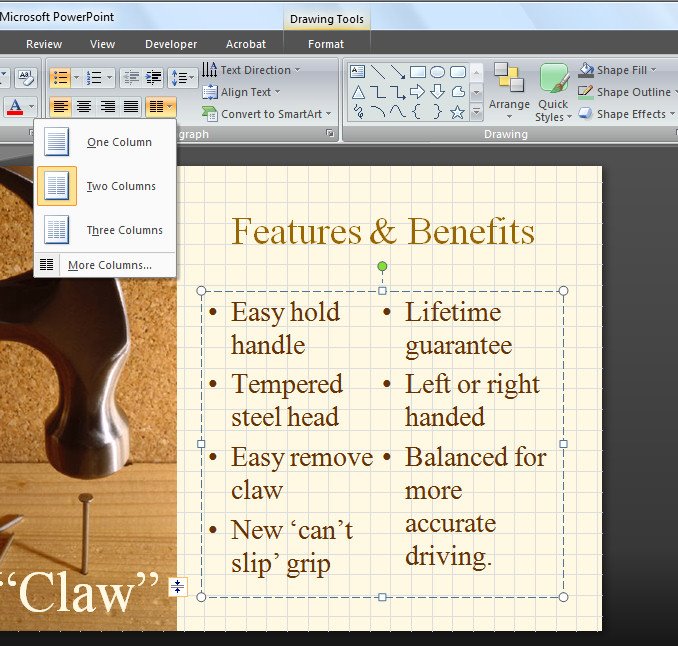
powerpoint columns 798353 PowerPoint PlaceholdersOne of the long awaited features of PowerPoint 2007 is its ability to format a two column placeholder for a slide.

This lets you place multiple columns of text inside a single text placeholder.

To do this you will need to be working in Normal mode so choose View > Normal.

Click the text placeholder that contains the text that you want to display in multiple columns and from the Home tab click the Columns button in the Paragraphs group.

Select the number of columns to split the text into and it will be automatically adjusted to suit.

Simple when you know how?

Tuesday, October 6th, 2009

Placeholders in PowerPoint 2007

powerpoint placeholder 733144 Placeholders in PowerPoint 2007One new feature of PowerPoint 2007 is that you can now add your own placeholders to PowerPoint slide layouts.

In past versions of PowerPoint each slide could have only one text placeholder that would behave as a PowerPoint text placeholder – you could add text boxes but the text couldn’t be formatted in them the same way as it could when you used a placeholder. Now you can have multiple text placeholders on a slide.

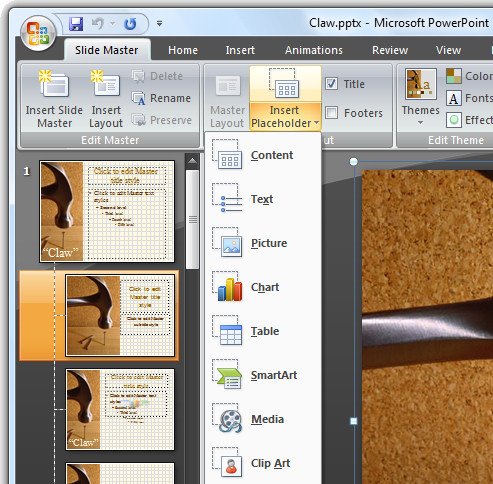
To see these at work, choose View > Slide Master to move to the Slide Master View and then click the Slide Master tab at the left of the Ribbon.

Select the master that you want to add an additional placeholder to and select Insert Placeholder from the ribbon.

From the list, select the type of placeholder to use – these include placeholders for text, picture, chart, table, SmartArt, media and clipart. You can, if desired, add multiples of these placeholders to a slide so you can have a slide layout that has all the elements on it that you need.

For example, you may wish to have a text placeholder next to a chart or text and a picture located side by side. Each placeholder can be sized and positioned anywhere on the slide.

Thursday, July 2nd, 2009

PowerPoint: Custom slide navigation with Action buttons

PowerPoint slidemaster 776096 PowerPoint: Custom slide navigation with Action buttons
While many people make their presentations in the presence of an audience and they move from one slide to the next, not all presentations are delivered this way. Many slide shows are viewed by people at their desk and when you are creating presentations for display this way, you can create a custom navigation scheme for the user to use to progress through the show.

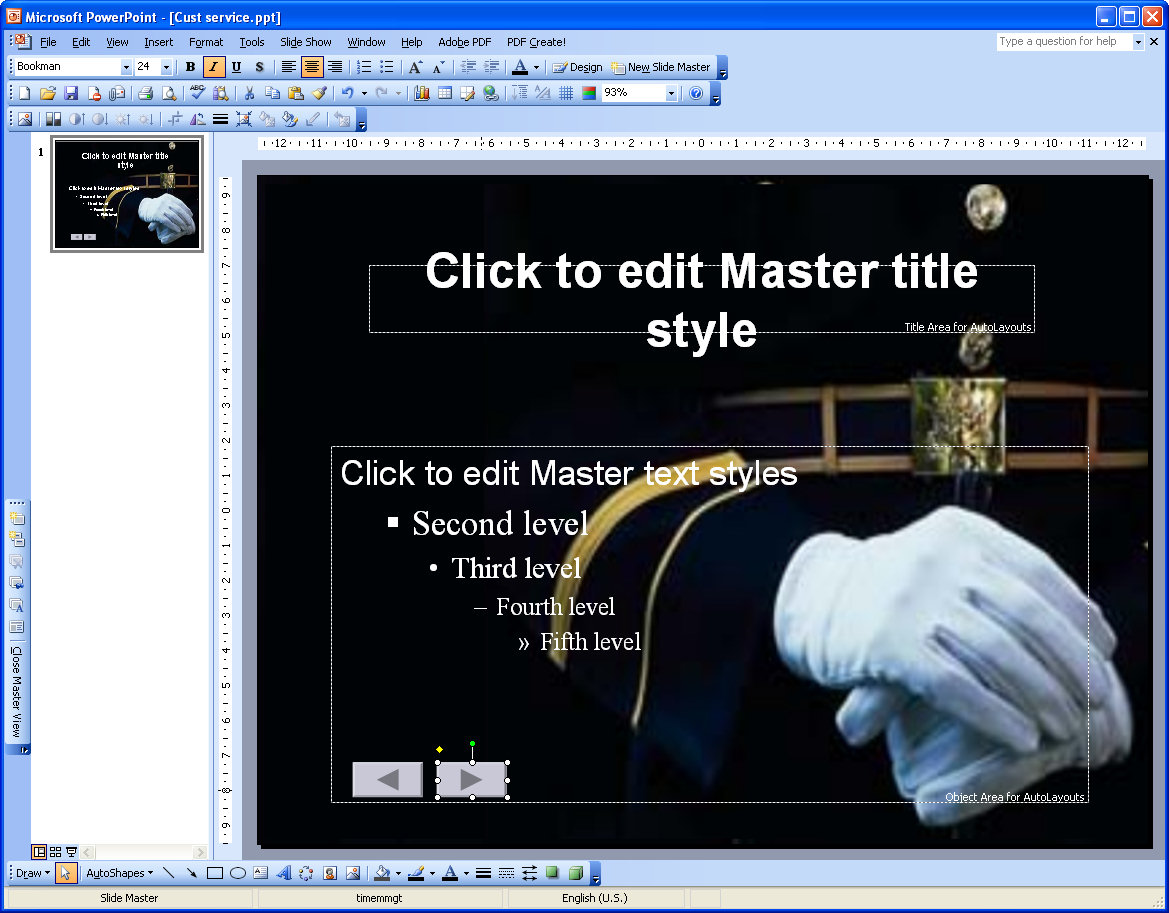
To do this, start by choosing View > Master > Slide Master to move to the Slide Master view. In PowerPoint 2007 select the topmost slide in the layout pane. Choose Slideshow > Action buttons and select the Action Button: Back or Previous. Click and drag the Action button on the slide – the Action Settings dialog shows Hyperlink To: Previous Slide – click Ok.

Repeat and this time add the Action Button: Forward or Next. This Action button is hyperlinked by default to the next slide.

Add an Action button that goes to the first slide by choosing Slideshow > Action buttons > Action Button: Home.

To size the Action buttons Control + Click on each of them in turn, right click and choose Format AutoShapes. Select the Size tab and adjust the width and height for all at the one time.

Click the Draw button on the Drawing toolbar, choose Align or Distribute > Distribute Horizontally to create even spacing between each button. Drag the shapes into the footer area so they are clear of the area covered by the slide content. Click Close Master View to return to your presentation.

Any shape can be configured to perform like an Action button. Add the shape to the slide, right click and choose Action Settings from the menu. You can hyperlink the shape to any slide, Office document or web page.

Monday, June 29th, 2009

Flash files in PowerPoint 2007 Presentations

It’s easy to add Flash movies to your PowerPoint presentations and to configure them to play. Here’s how:

pp 1 799444 Flash files in PowerPoint 2007 Presentations
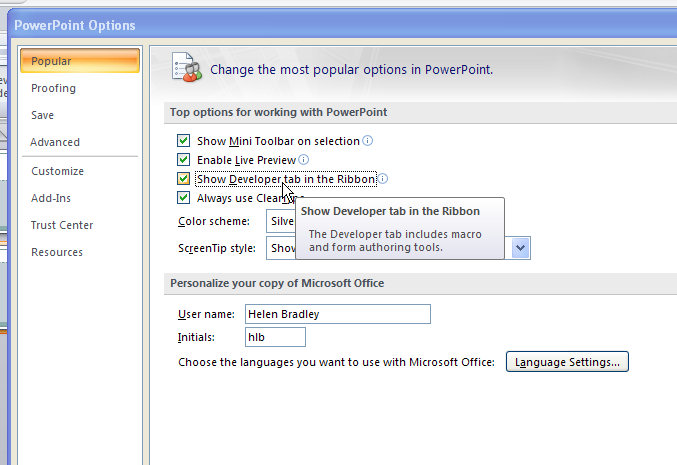
Step 1
Start by loading the Developer tab which provides access to the objects that you need to do this. Click the Office button, choose PowerPoint Options > Popular group and enable the ‘Show Developer tab in the Ribbon’ checkbox.

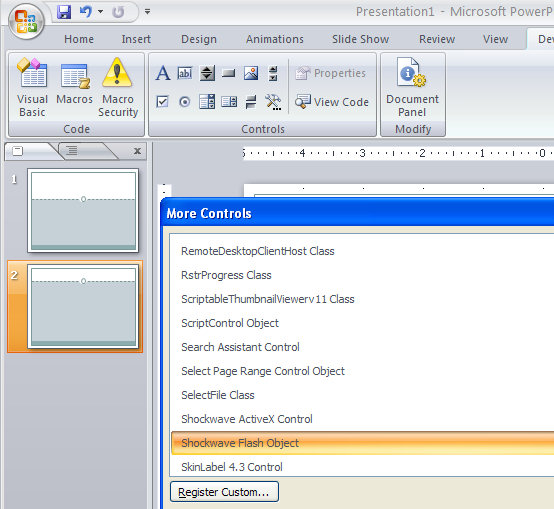
pp 2 757703 Flash files in PowerPoint 2007 PresentationsStep 2
Switch to the slide that will be used to play the Flash video. Select the Developer tab on the Ribbon, click the More Controls button and locate and select the Shockwave Flash Object entry in the list. Click Ok and drag a shape onto your slide.

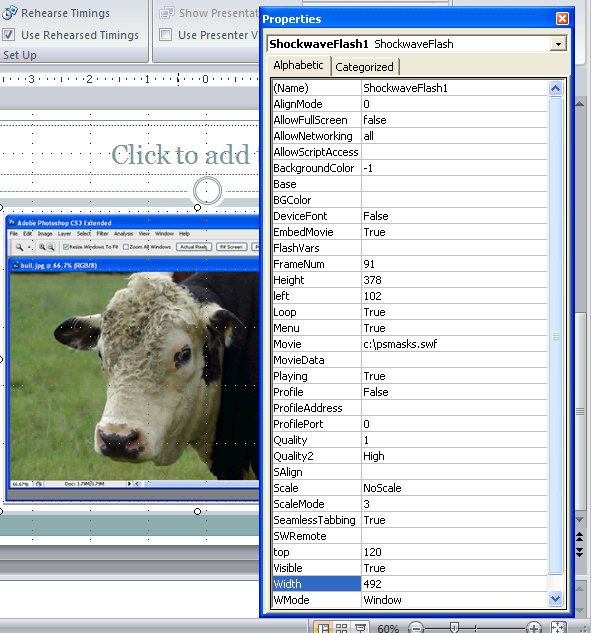
pp 3 757675 Flash files in PowerPoint 2007 PresentationsStep 3
Right click the shape and choose Properties. Set the Playing property to True, the Embed Movie property to True and set the Movie property to the full filename and path of the Shockwave movie file. Click Ok. You must run the presentation to preview the movie file.

Thursday, April 16th, 2009

Send to PowerPoint missing? Not really!

ppsendto 791150 Send to PowerPoint missing? Not really!
In Word 2003 you could create an outline in Word and then send it to PowerPoint where it would be converted to a PowerPoint slide show. Level 1 became the slide title and level 2 the first level bullet points and so on.

I hear a lot of grumbling that this feature has been removed from Office 2007 – not so! It just isn’t quite where you expect it to be. In fact, you have a few options in PowerPoint 2007 and Word 2007.

Option 1
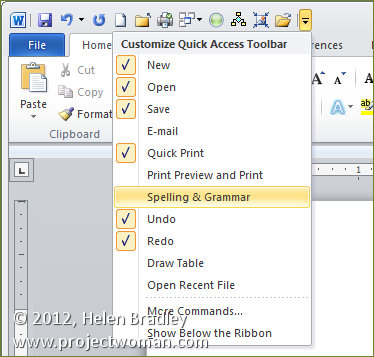
You can add the Send to PowerPoint button to the Word 2007 Quick Access toolbar by clicking the Office button and choose Word Options > Customize and from the Commands not in Ribbon collection choose the Send to Microsoft Office PowerPoint option and click Add to add it and then Ok. Now you can click it to send the outline file to PowerPoint.

Option 2
You can also approach the task from PowerPoint 2007 which is really the better option. One alternative is to open the Word outline file in PowerPoint and the slides will be automatically created for you. To do this click the Office button and choose Open and from the Files of type list choose All Files so you can see and open your Word file.

Option 3
This is my fave!

Open PowerPoint 2007 with a new slide show and make sure your Word 2007 outline file is closed.

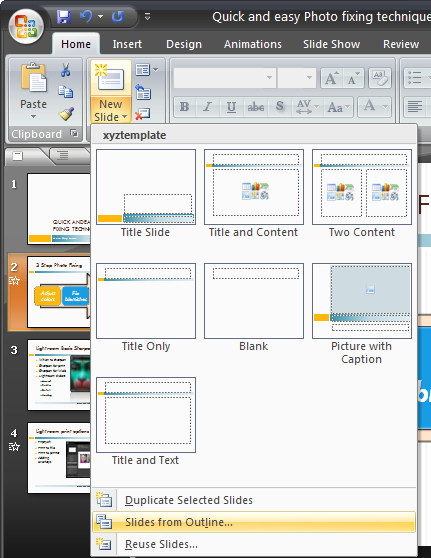
Choose the Home tab on the Ribbon and click the little arrow on the New Slide button. This opens a menu which includes the option Slides from Outline – select this and open your Word 2007 outline file. The slides are automatically created for you.

So, the option to Send to PowerPoint is not there in Word 2007 but you have so many more ways to complete the task now.

Friday, April 3rd, 2009

PowerPoint – Create a Custom Show

customshow 760043 PowerPoint   Create a Custom Show
Did you know that one PowerPoint presentation can be reused over and over again, in different configurations for all sorts of purposes. A large presentation can be broken up into shorter presentations and a regular presesntation can be reworked to be used as a Kiosk presentation at a tradeshow. You can do all this without creating additional files or duplicating slides which means that you can make changes to all the shows in one step.

Create the new show
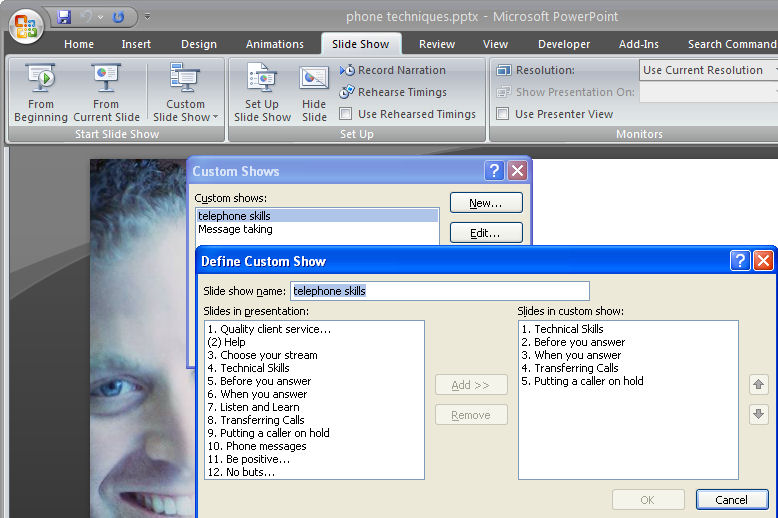
1 To create a new custom show from an existing presentation, open the presentation and, in PowerPoint 2003, choose Slideshow > Custom Shows and in PowerPowerPoint 2007 click the Slide Show tab > Custom Slide Show. Click the New button and type a name for your custom show – use a name that identifies what it contains or the audience you will present it to.

Add the slides
2 From the Slides In Presentation list click each slide that you want to include in the shortened or custom slideshow and click Add to add it to the slides in custom show dialog.

Organise the slides
3 Use the arrow buttons by the Slides In Custom Show pane to rearrange the slides to a different arrangement in the custom show if desired. When you are done, click Ok to create your custom show.

Selecting a custom show
4 If you click Close you’ll be returned to your original presentation but you can select the custom show at any time by choosing Slideshow > Custom Shows, select the custom show by name and click Show. Now if you run the slide show you’ll see the slides in the selected custom show only and in the desired order.

Customising the show
5 To customize the setup for your custom show, choose Slide Show > Set Up Show. Select the Custom Show option in the Show Slides area and click your show name in the dropdown list. Select whether the show will be given by a speaker, at a kiosk, or browsed by an individual and then set the show options. Click Ok to confirm your choice.

Things to watch out for
There are a couple things to be aware of when you are using custom shows. If you have the custom show selected, while you can still work on other slides – even those not in the custom show – if you choose to view the show you’ll see only slides in the custom show and not necessarily those you’ve been working on.

To view the entire show, choose Slide Show > Set Up Show (in PowerPoint 2007 choose Slide Show > Set Up Slide Show), and select All from the Show Slides list. Now when you run your presentation you’ll see all the slides in your presentation.

Thursday, March 12th, 2009

PowerPoint slide show file – PPSX vs PPTX

pp show 769802 PowerPoint slide show file   PPSX vs PPTX
What is in a name? Is there a difference between a PowerPoint 2007 PPSX and a PPTX file? (or a PPS and a PPT file in PowerPoint 2003 and earlier versions?)

The simple answer is, of course, yes there is a difference.

The long answer explains that difference so sit tight, here’s the long version:

The PowerPoint Slide Show files (PPSX and PPS) are files you can double-click on in Windows Explorer and the presentation will launch and start to display automatically bypassing PowerPoint itself. When you exit the presentation you will be taken back to Windows rather than left in PowerPoint with the presentation layout visible on the screen.

On the other hand, when you double click to open a PPTX or PPT file, it opens inside PowerPoint ready for editing or presenting. When you’re done, you get dumped back in PowerPoint with, you guessed it, your presention visible on the screen – not very professional if your audience is watching.

To save a presentation as a PPS file in PowerPoint 2003 and earlier, choose File > Save As and from the Save As Type dropdown list choose PowerPoint Show (*.pps) and click Save. In PowerPoint 2007, choose File > Save As > PowerPoint Show and the correct format will be automatically created for you.

PPSX and PPS files can be edited in PowerPoint in the same way as PPTX and PPT files can – you just have to open PowerPoint first and then choose File > Open to open the PPSX or PPS file as you can’t double click to open it.

So, now you know.

Page 1 of 3123